
Getting Started - Launch a Website from Blank
Launching your own website from scratch can feel overwhelming, but don't let the blank page stop you. With these instructions you can go from idea to published in record time.
Preparation & Planning
Create Blank Website
Build the Home Page
Add More Pages
Add Navigation
Previewing, Settings & Publishing
Preparation & Planning
Before you even log into GoHighLevel or drag your first element, taking some time to plan your website will save you significant time and effort, and result in a much more effective site.
1. Define Your Website's Purpose:
1. What is the primary goal of this website? Is it to generate leads, sell products, provide information, build brand awareness, or book appointments? Knowing this will guide all your design and content decisions.
2. Who is your target audience? Understanding their needs, preferences, and pain points will help you tailor the website's content and design to resonate with them.
1. What pages do you need? Most business websites start with a Home, About, Services/Products, and Contact page. You might need more or fewer depending on your goals.
2. What key information or call-to-action needs to be on each page? Think about what you want visitors to do or learn on each page.
3. Gather your assets: Do you have your logo, brand colors, images, videos, and written content (or at least an idea of it) ready?
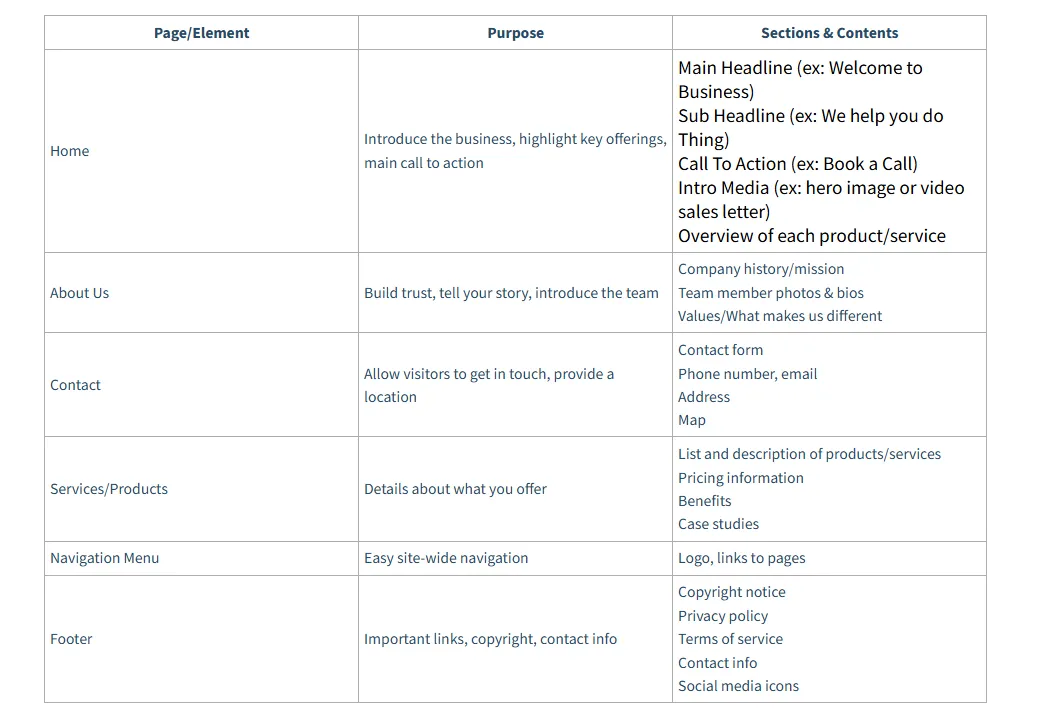
3. A Simple Plan: A table can help you map this out. Your plan might look something like this:
Create Blank Website
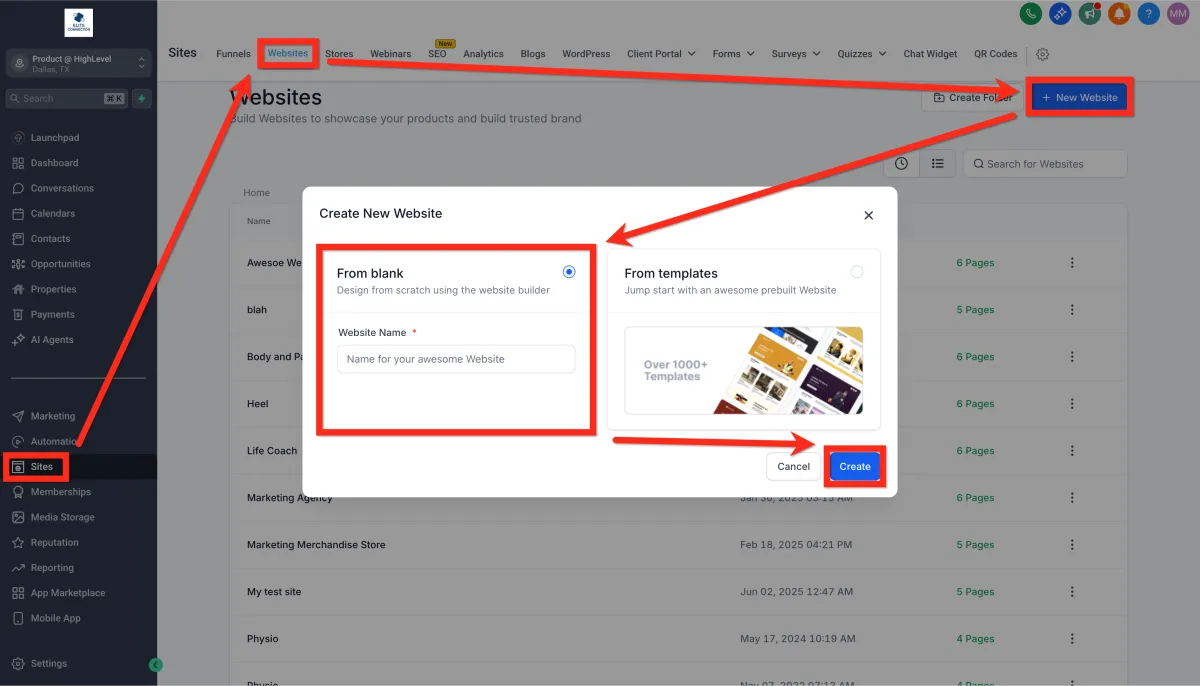
1. Navigate to Sites > Websites > New Website > From Blank and click Create.
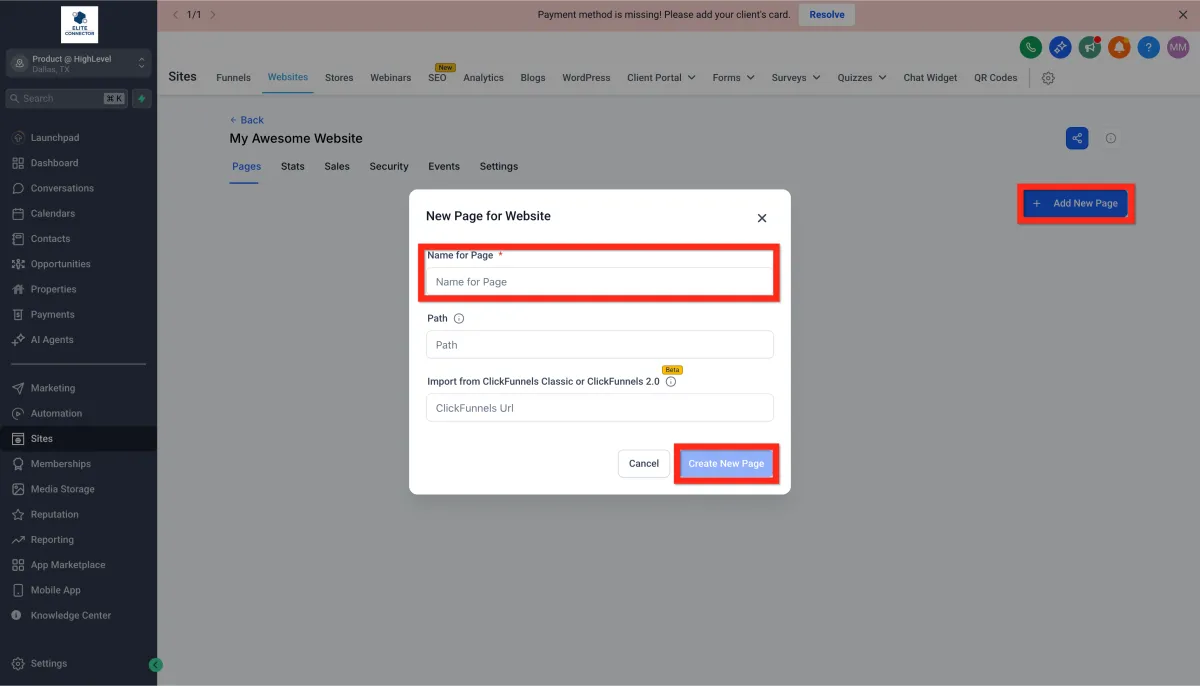
Click Add New Page then give it a name (ex: Home) and click Create New Page.
Build the Home Page
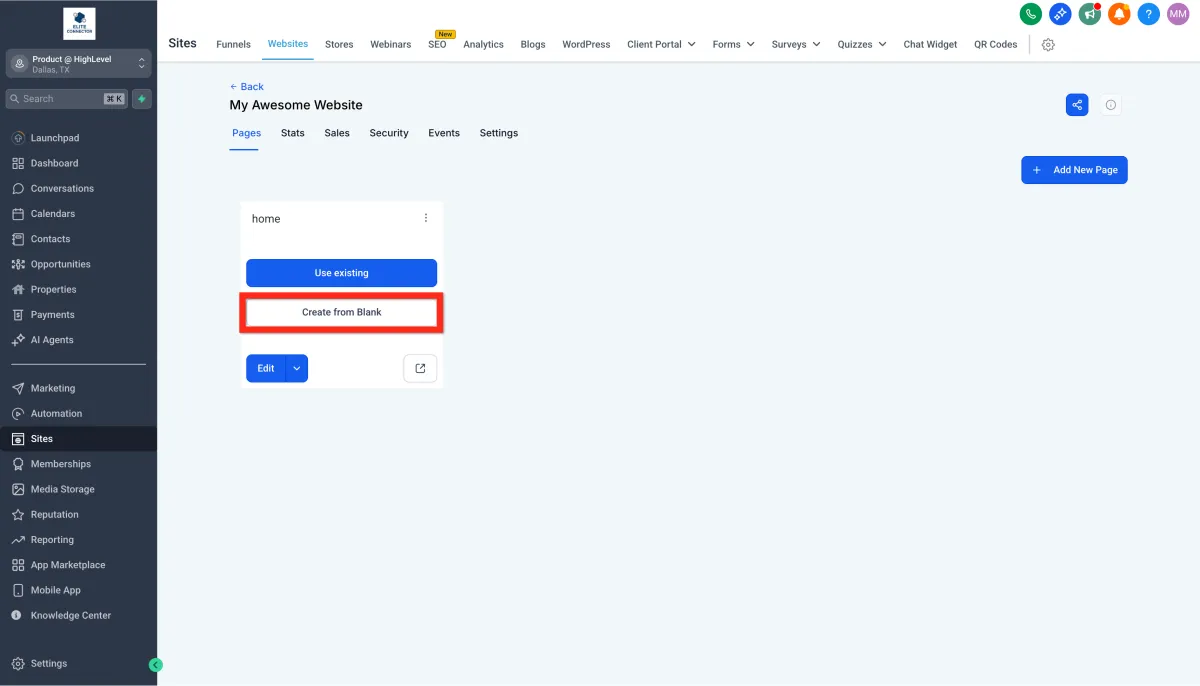
1. Click Create From Blank.
2.Open the Website Builder.
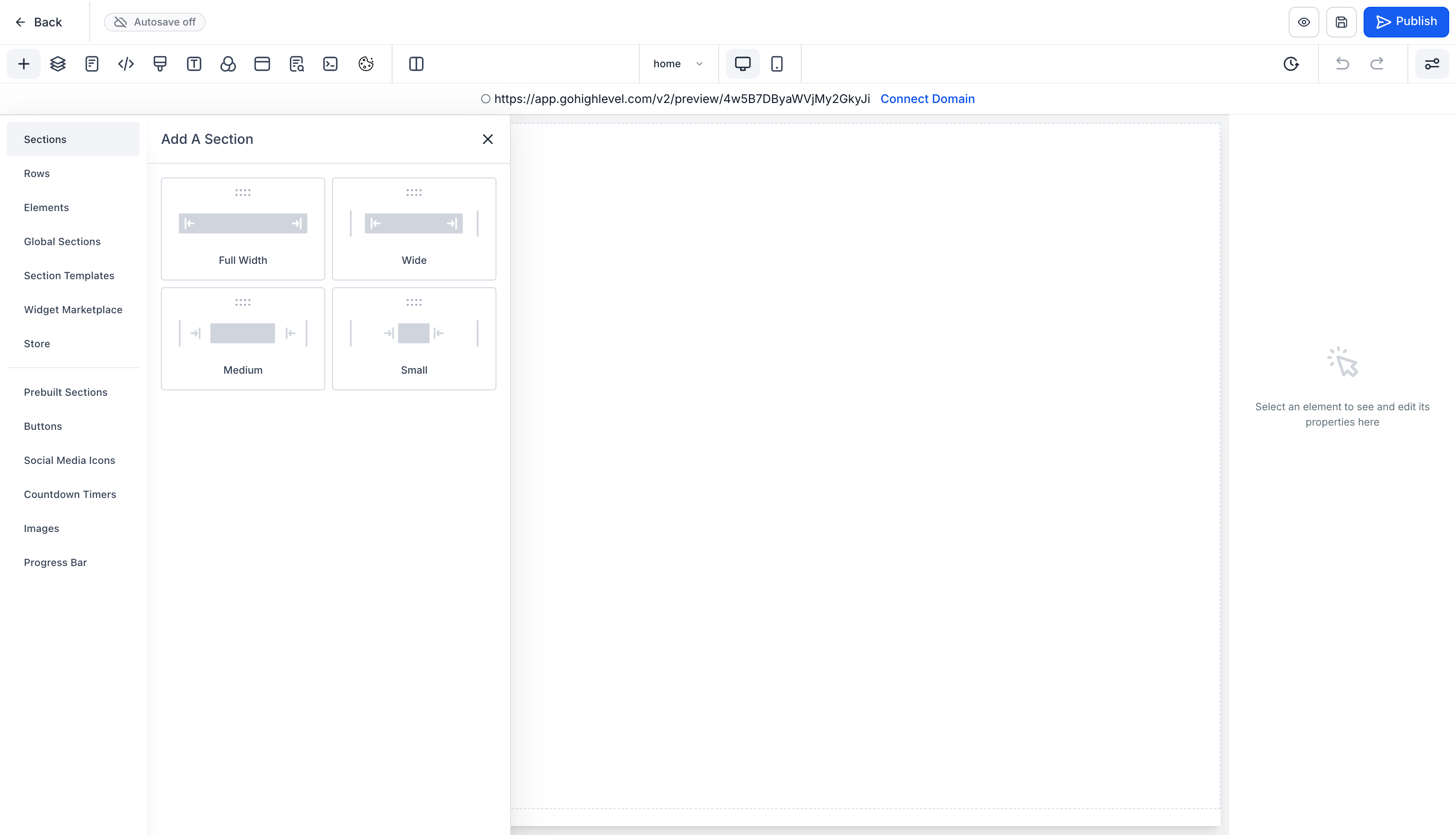
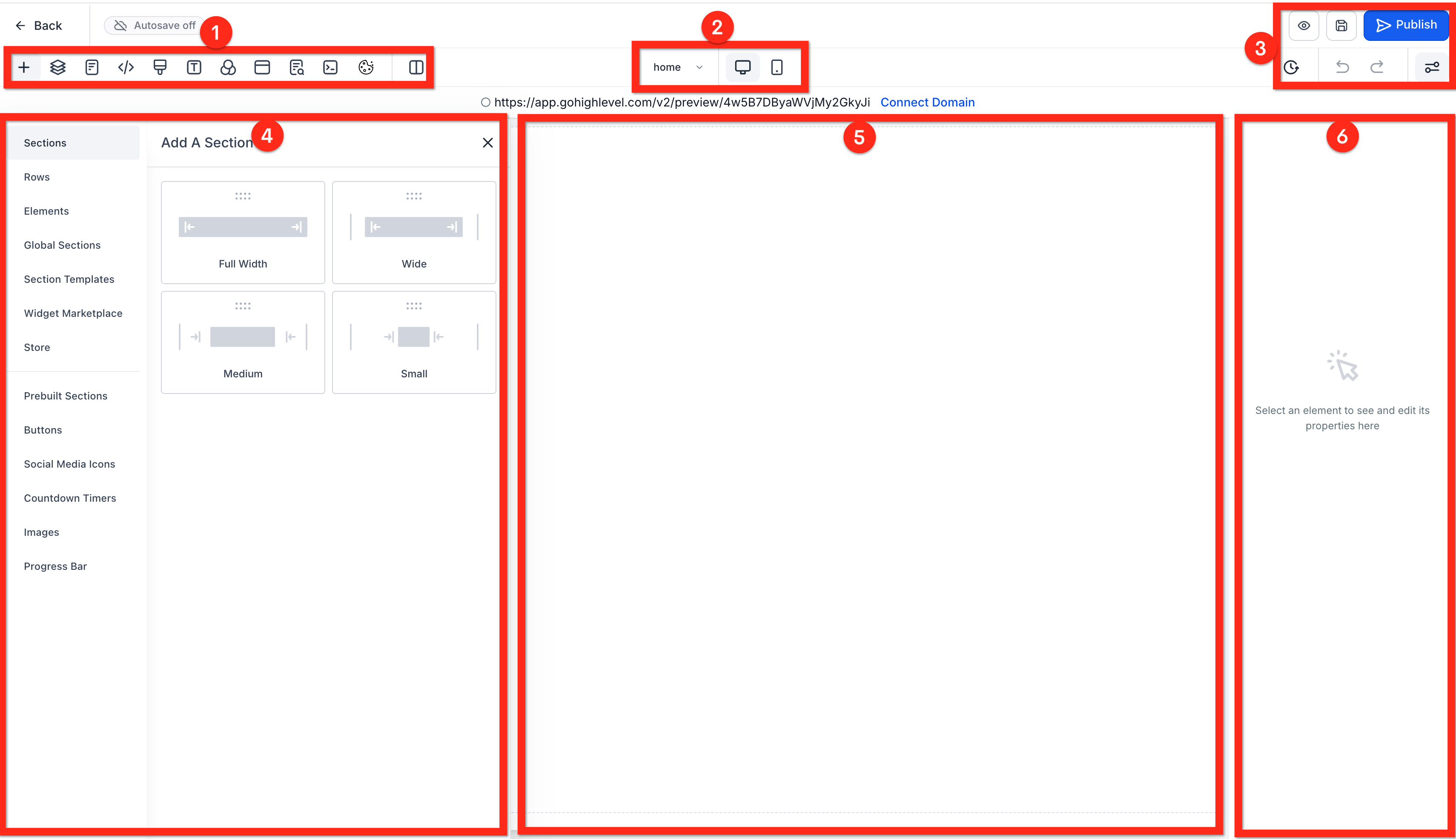
3. Understand the Editor
1. Control Panel: Control what appears in the Left Panel (4) such as elements, pages, and metadata.
2. Device Switcher: Switch between desktop and mobile views to test responsiveness.
3. Meta Controls: History, undo, preview, save, publish, etc.
4. Left Panel: Elements and settings for the page.
5. Center Panel: Live editable preview of your page.
6. Right Panel: Settings and styling options for the selected Section, Row, or Element.
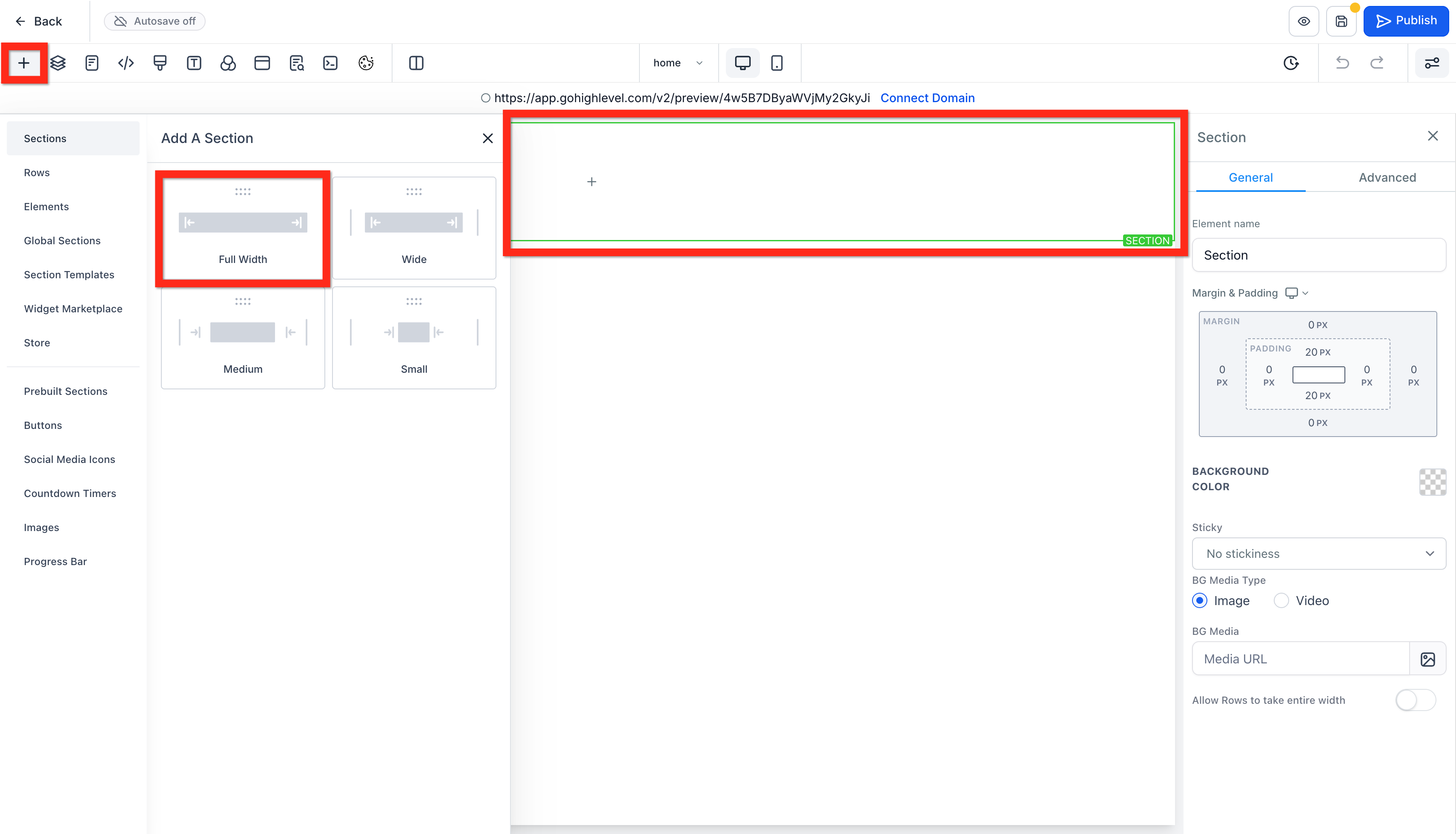
4. Add a Section: In the center (if empty) or by clicking the + (Add Element/Section) icon on the left sidebar, choose Sections, then select a section width (e.g., Full Width).
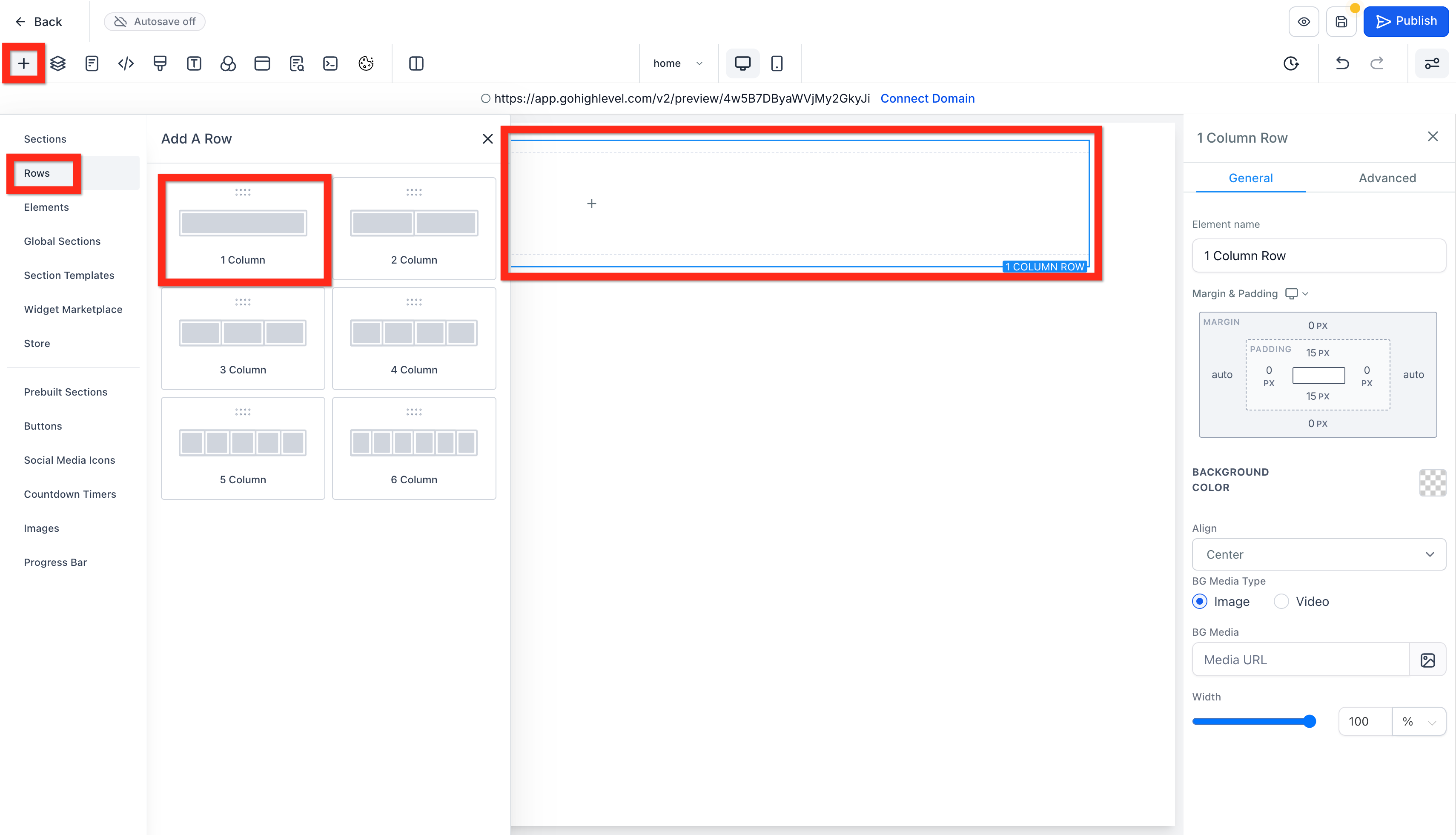
5 .Add a Row: Inside the new green-bordered section, drag to add a Row and select 1 Column.
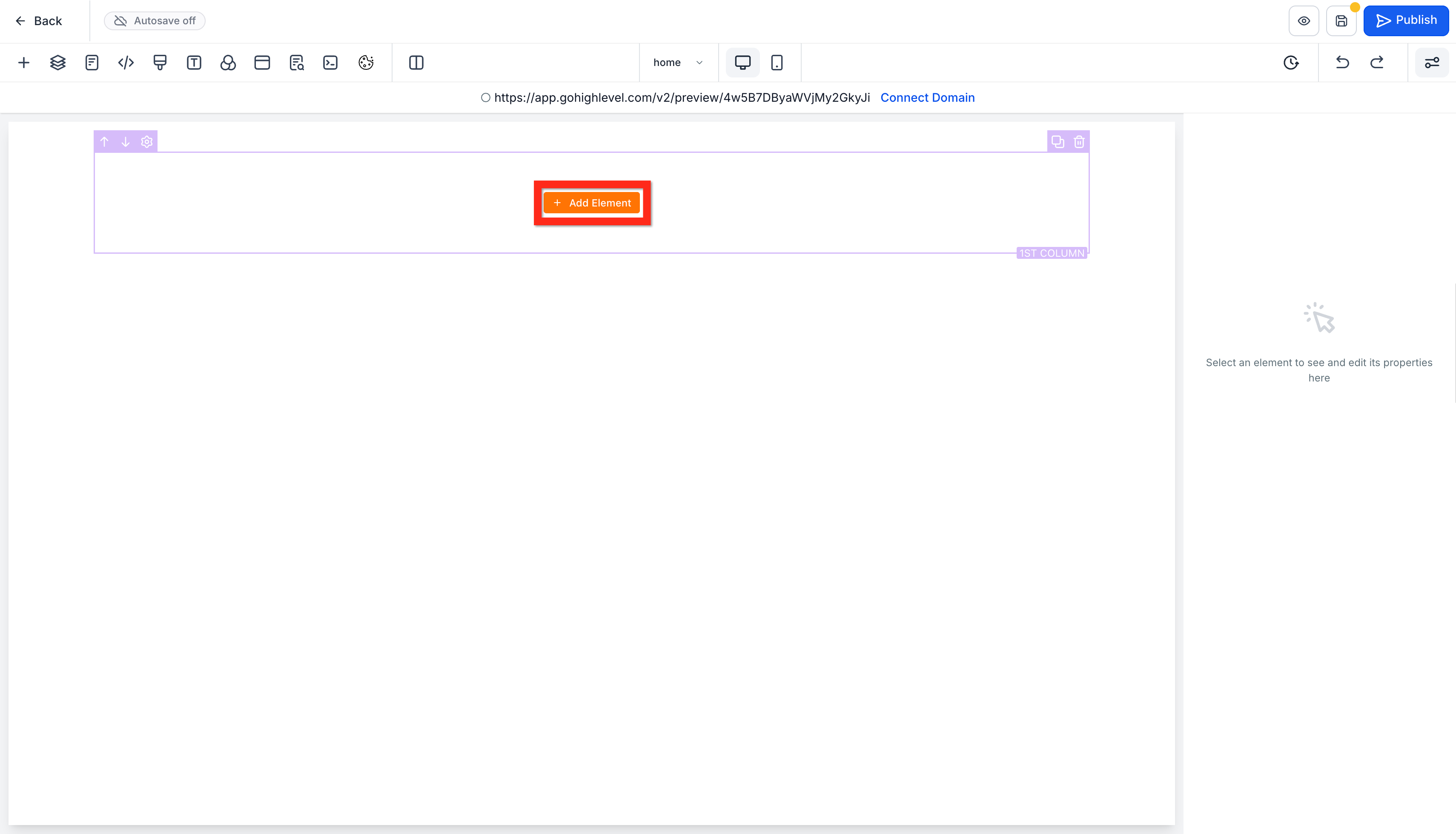
6. Add Headline and Sub-Headline: In the 1 Column Row, click Add Element.
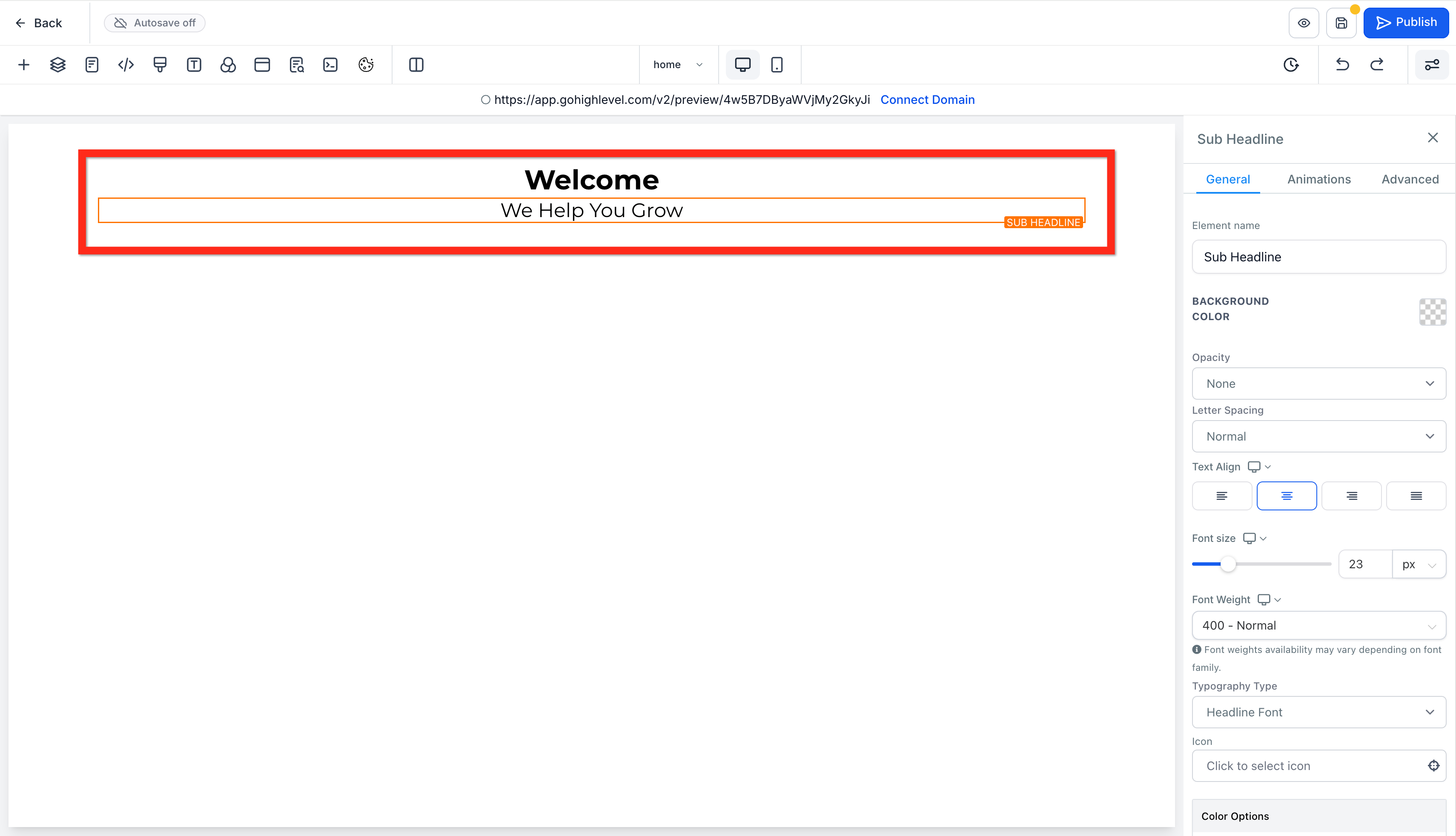
1. Headline: Drag a "Headline" element into the row. Click the text to edit it (e.g., "Welcome"). Use the right panel to change font, size, color, etc.
2. Sub-Headline: Click + Add Element again, drag a "Sub-Headline" below the main headline. Edit its text and style (ex: We Help You Grow).
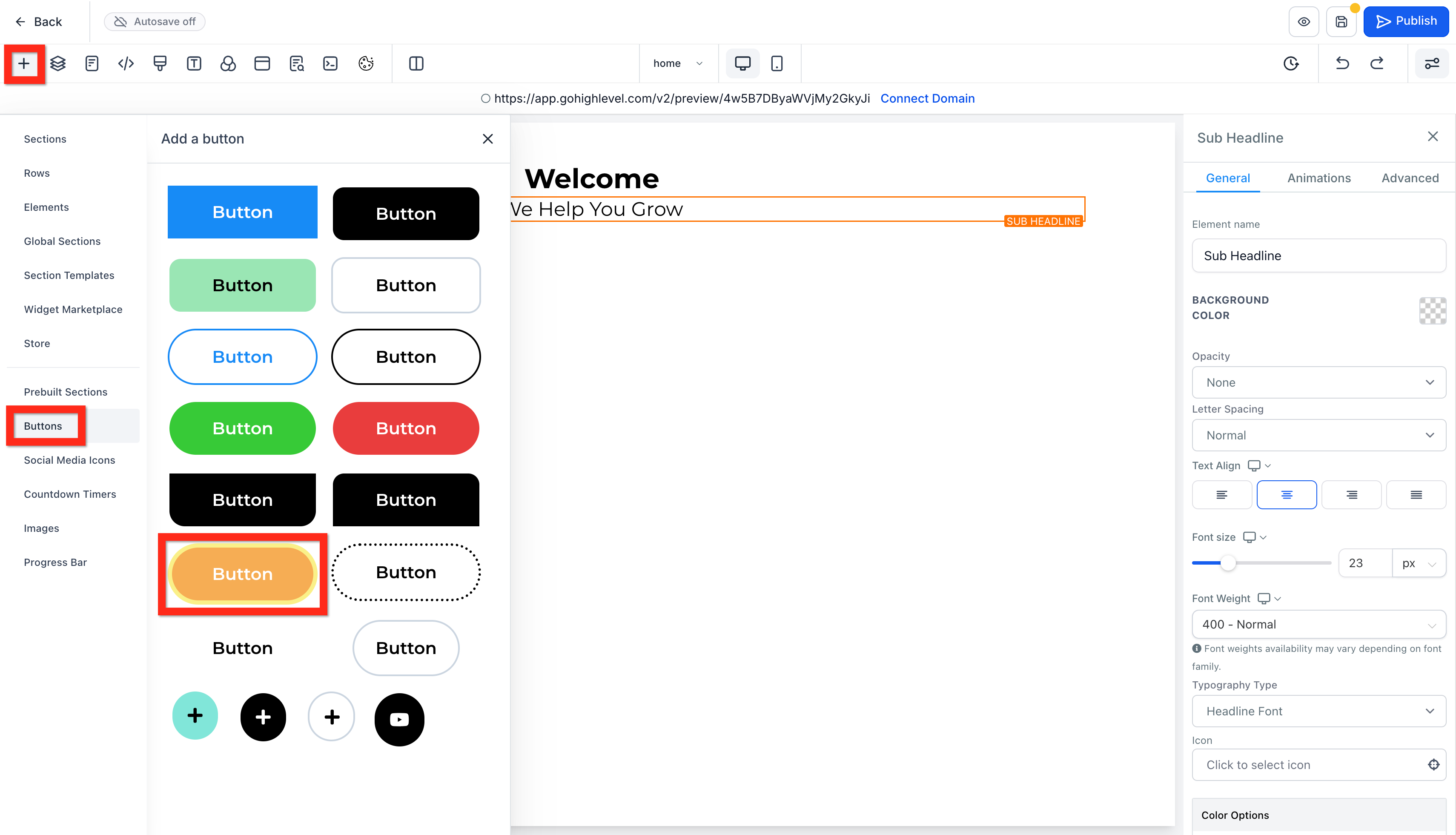
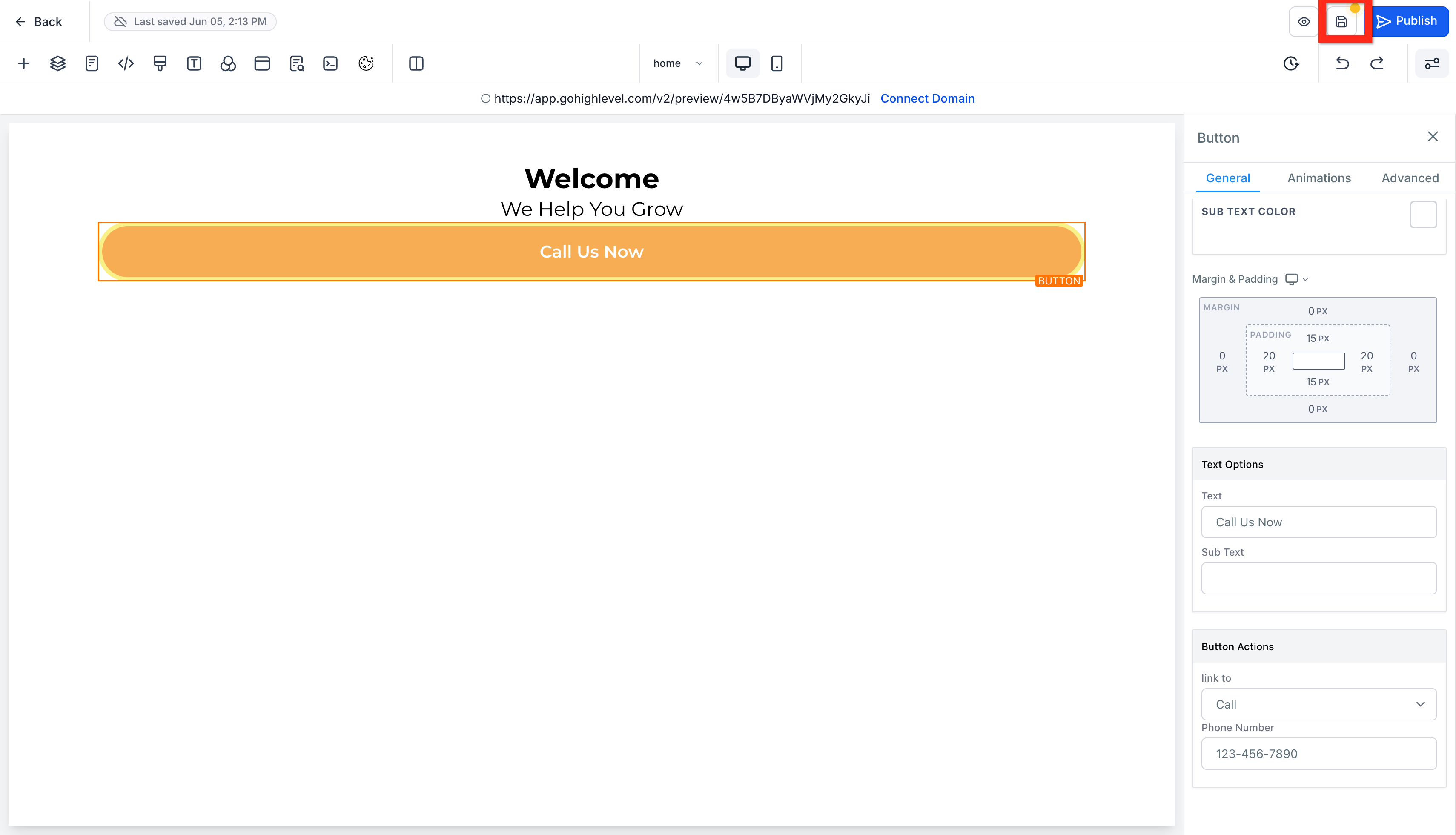
7. Add a Button: Under the sub-headline add a button. Then, edit the text of the button to "Call Us Now"
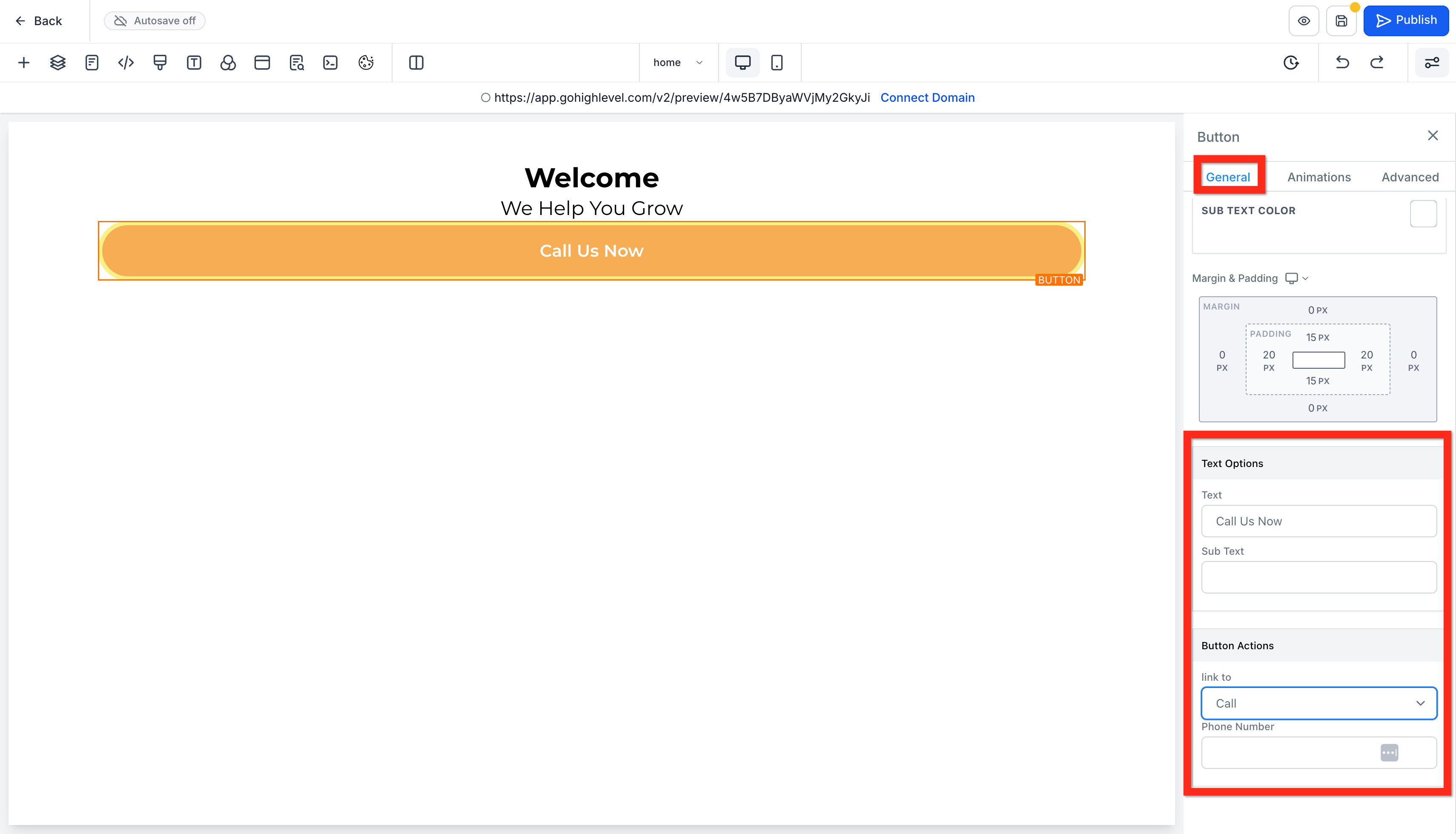
8. Add an Action: In the button's settings (Right Panel) scroll down to Button Actions, select Call, then input your phone number.
9. Repeat: Continue adding sections, rows, and elements to build out your homepage.
10. Save: Click the save icon.
Add More Pages
1. Navigate to Sites > Websites > Site Details (if you are still in the page editor click the back button).
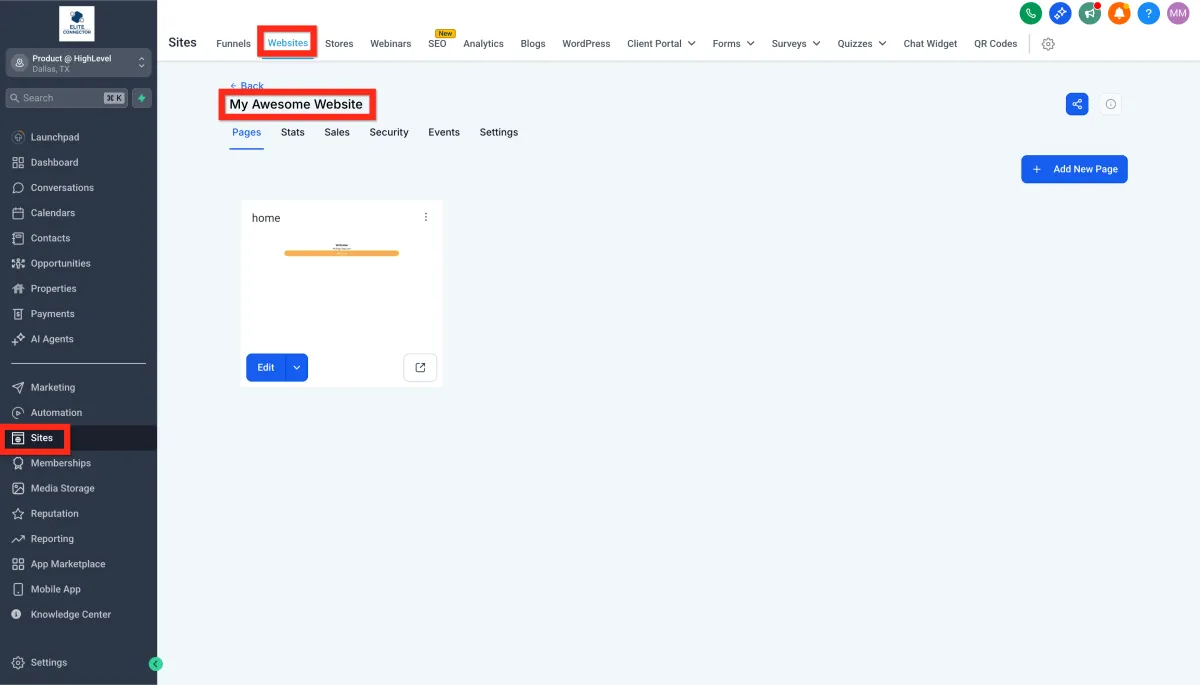
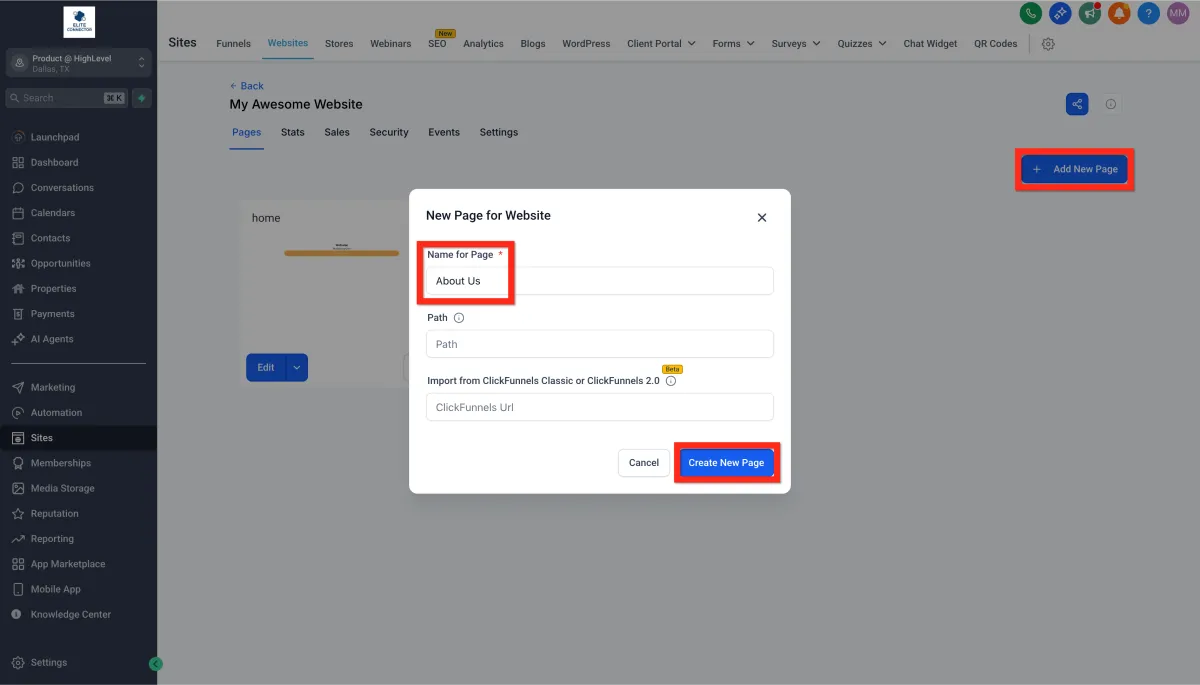
2.Add a New Page: Click the Add New Page button. Name the page (Ex: About Us) Click Create New Page.
Add Navigation
1. Navigate to Sites > Websites > Site Details (if you are still in the page editor click the back button).
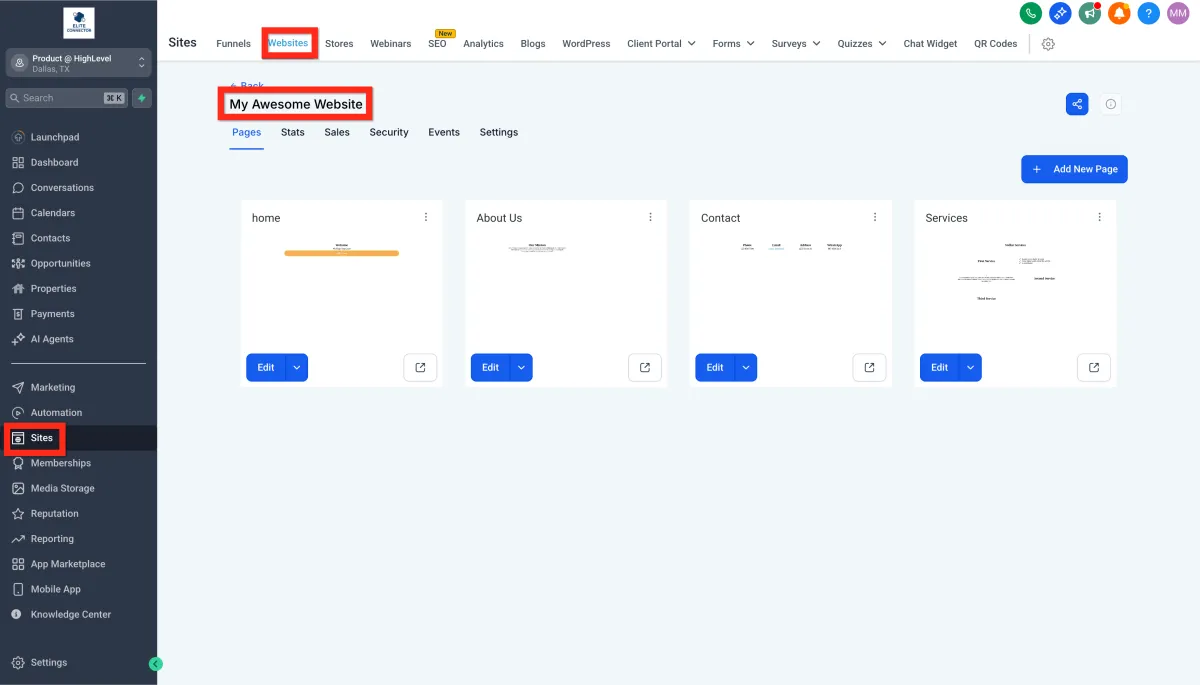
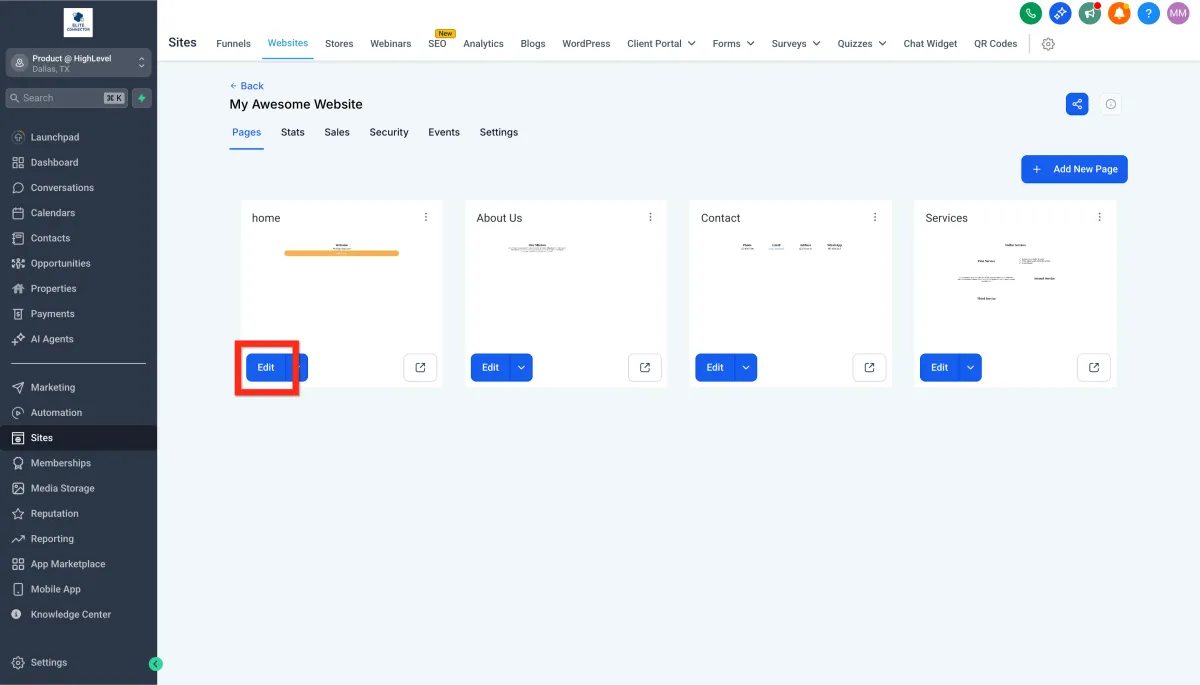
2. Edit the Home Page: Under the page card titled "home" click Edit.
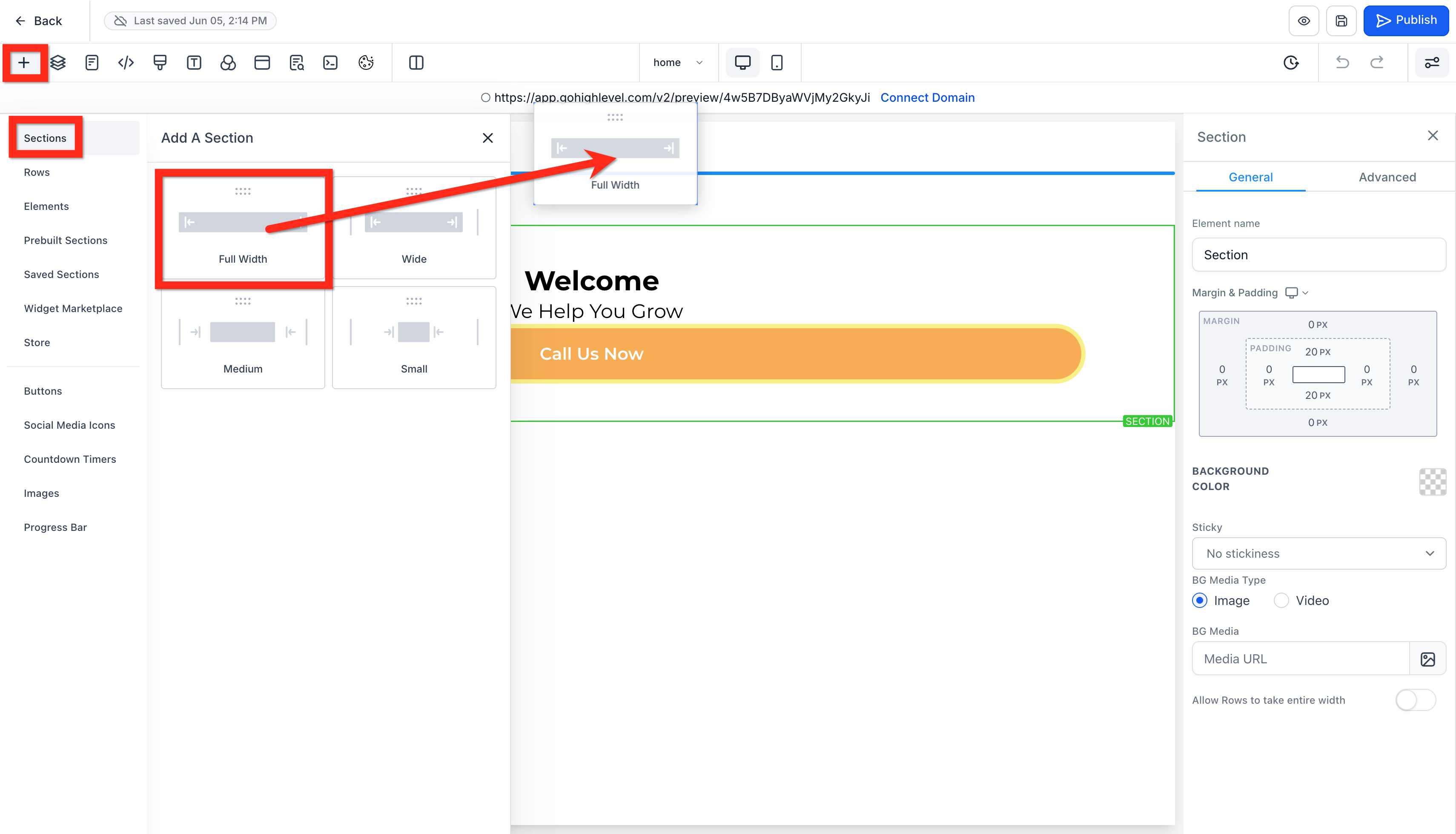
3. Add new top full width section: At the very top of the page, above all the other sections, add a new full width section.
4. Add a 1 column row and Navigation Menu: Inside the new top section, add a 1 column row, then add the element called Navigation Menu.
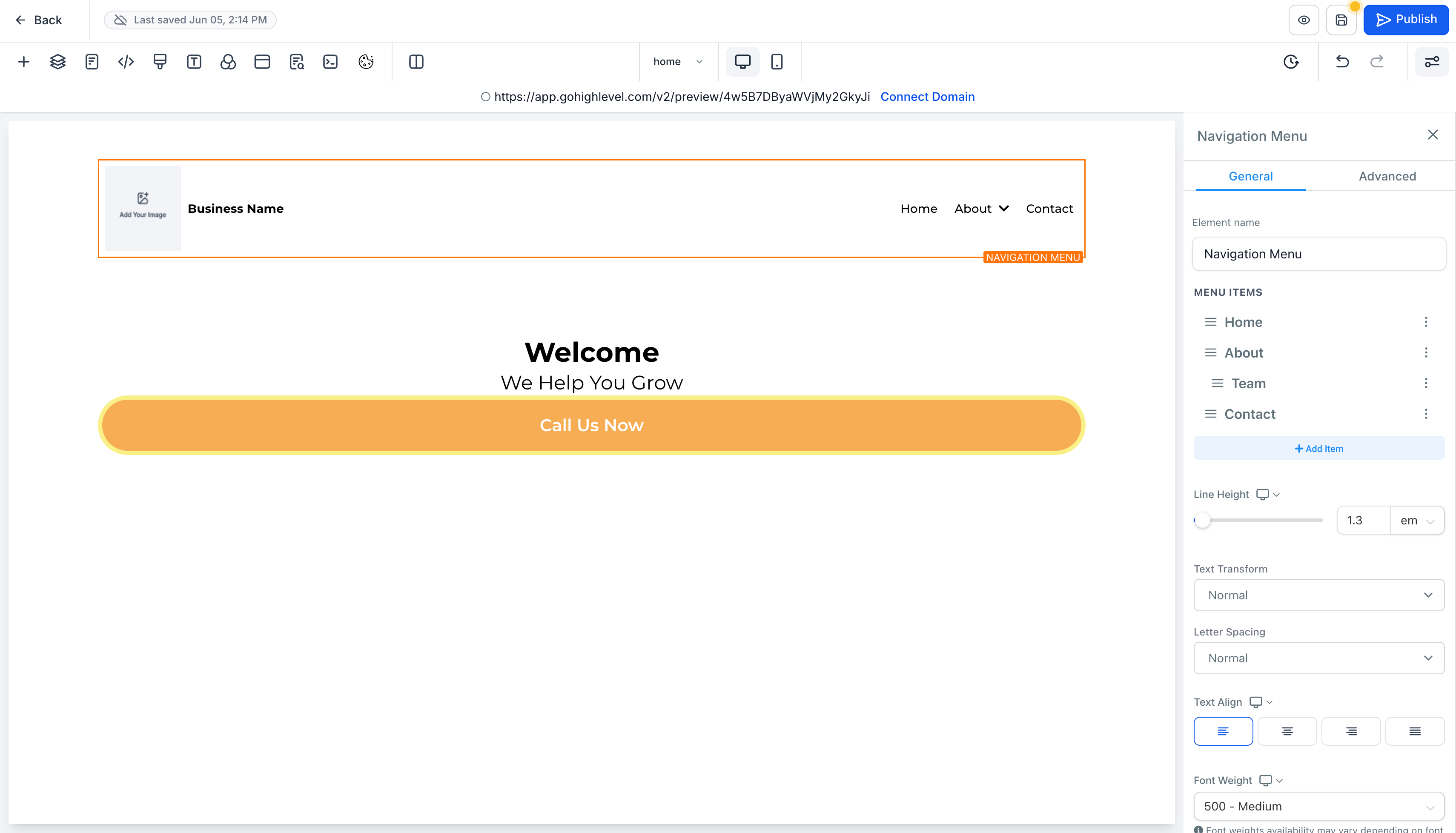
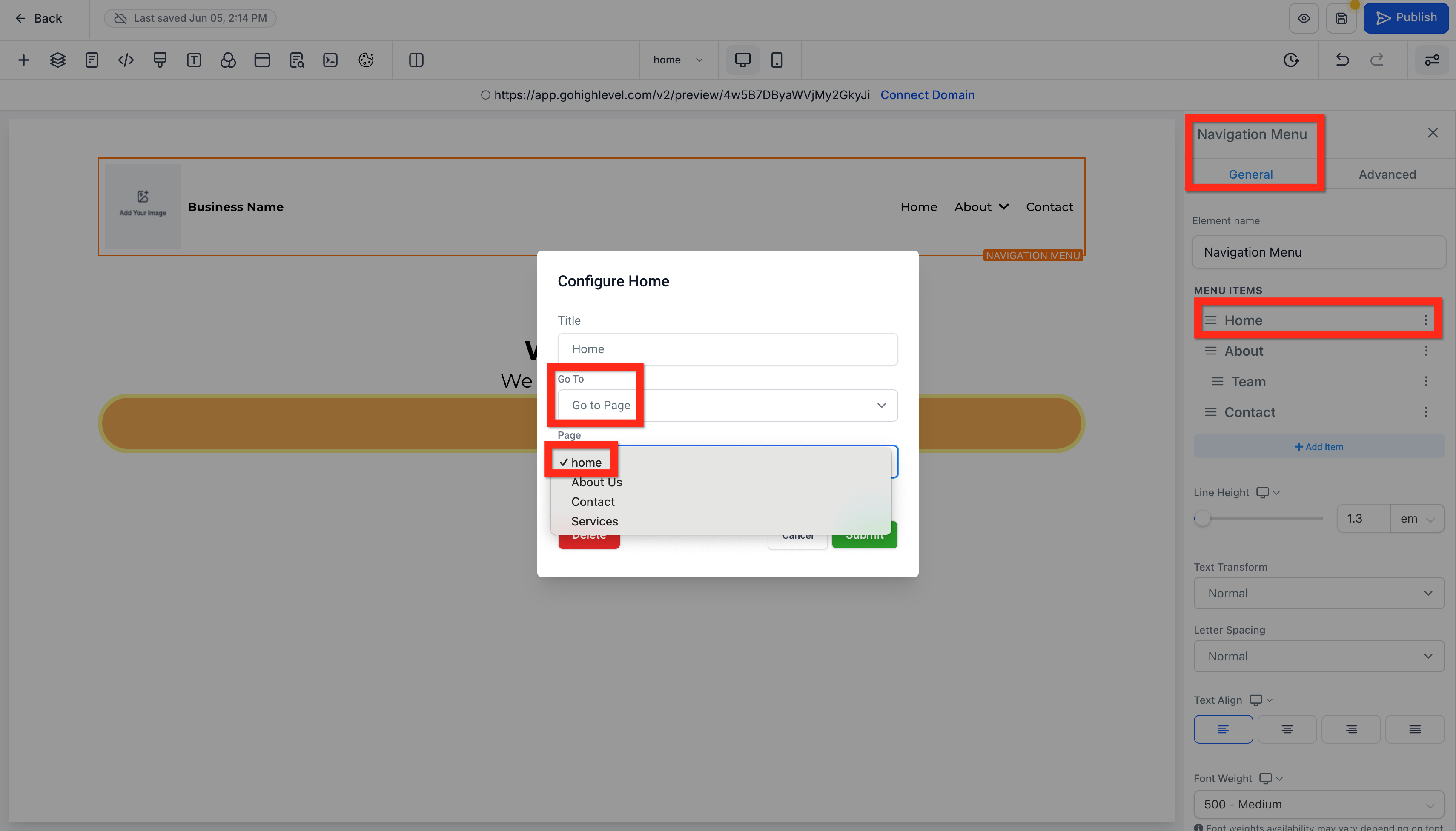
5. Edit Navigation Menu Settings: Click to select the navigation menu, then in the right settings bar, make sure each link goes to the right page, add a logo, etc.
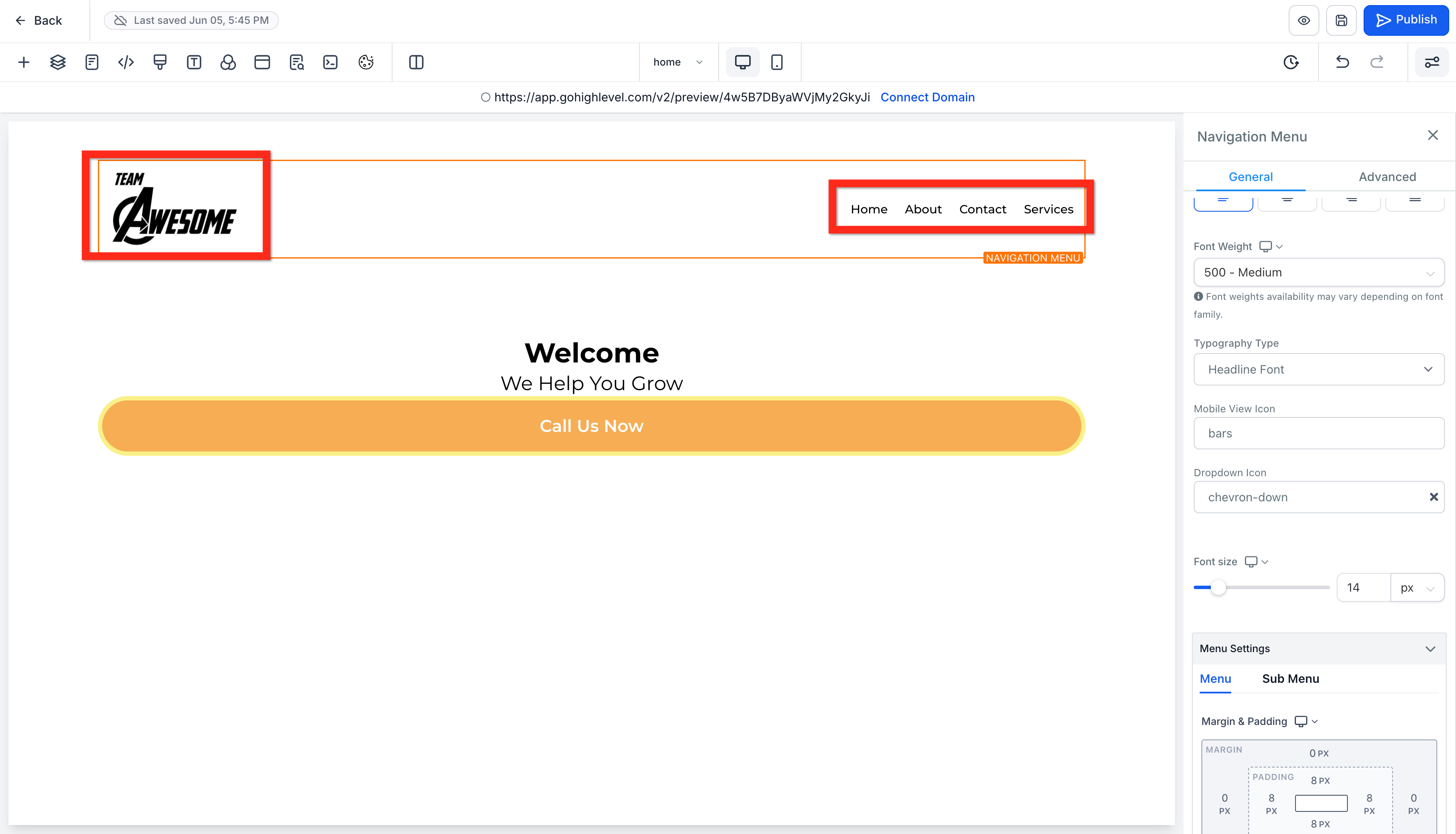
6. Add a new bottom full width section: At the bottom of the page, under all the other sections, add a new full width section.
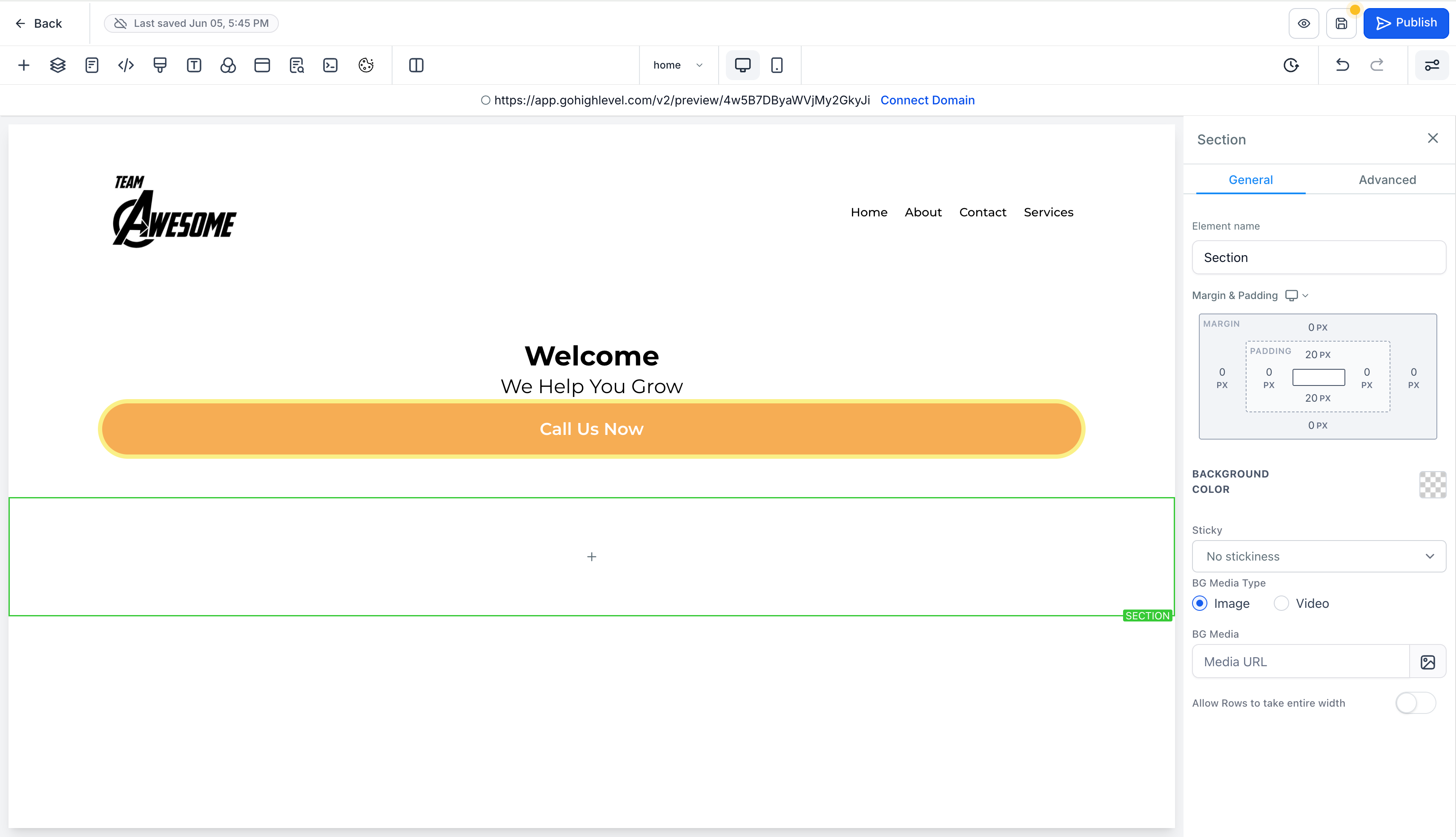
7. Add a prebuilt footer: Open Elements > Prebuilt Elements > Footer and drag a footer into the bottom section.
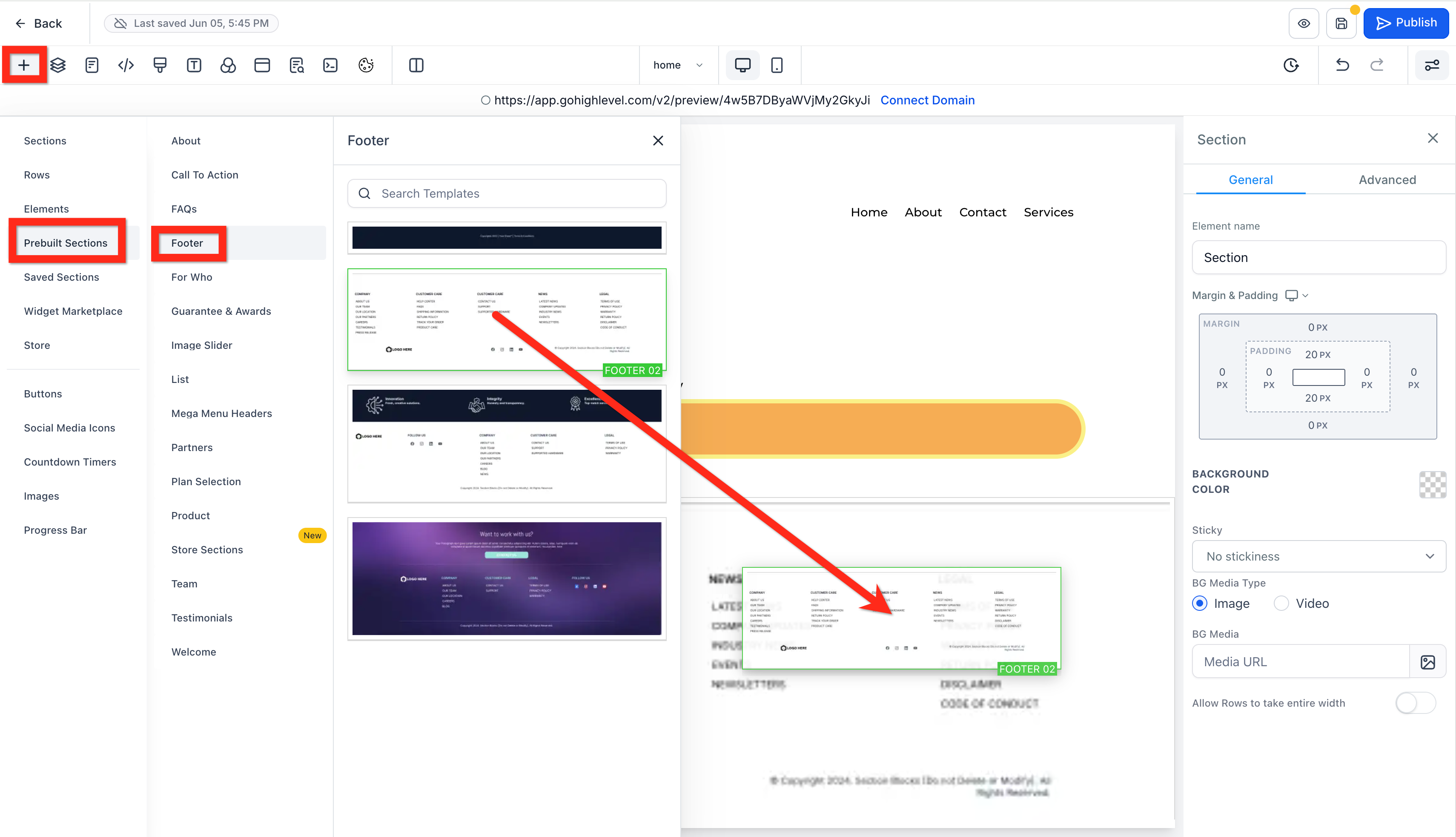
8. Edit Navigation Menu and Footer: Select each element and delete it or edit its settings in the Right Panel. When you're done, click Save and Back.
Previewing, Settings & Publishing
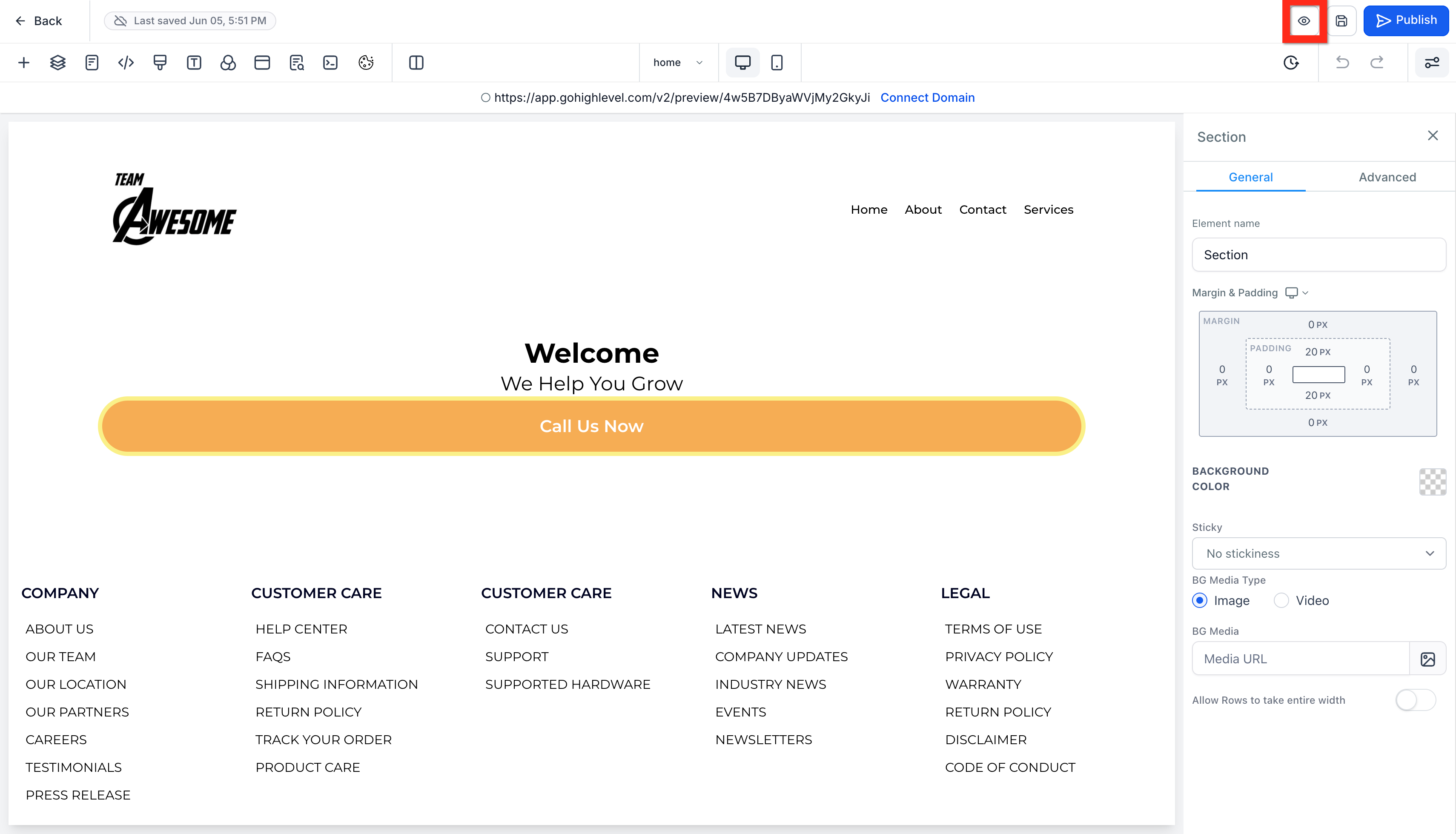
1. Navigate to Sites > Websites > Site Details and click the preview page button (box with arrow icon). OR if you are in the page builder, click the preview button (eyeball icon).
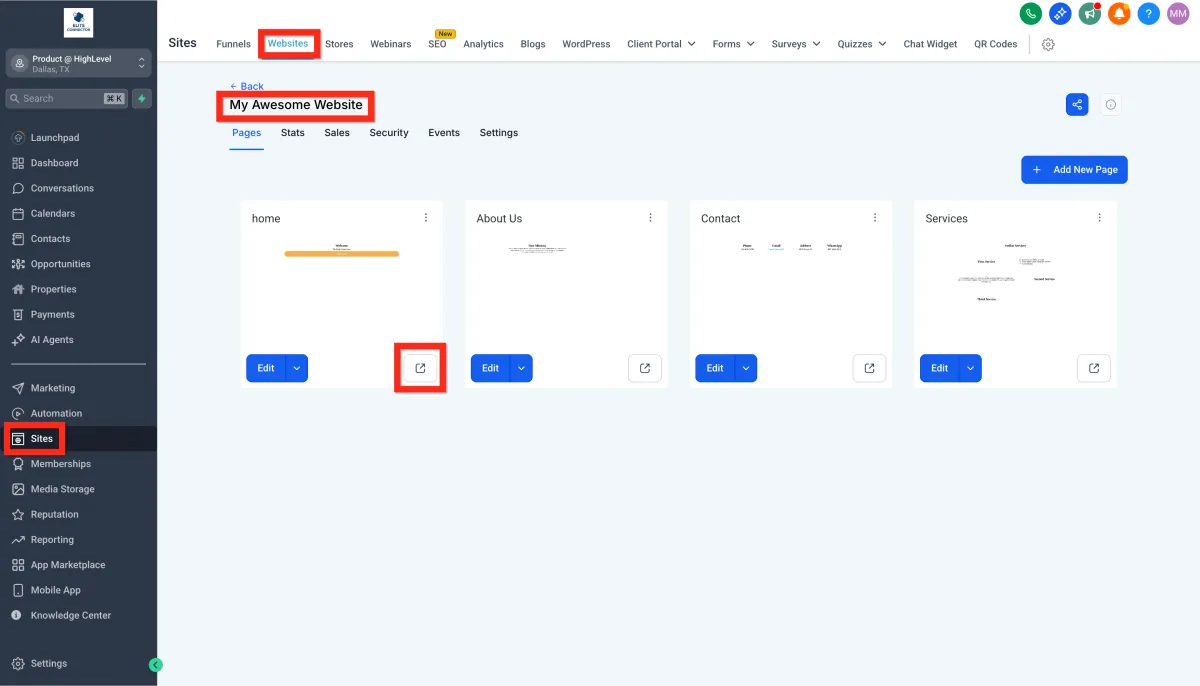
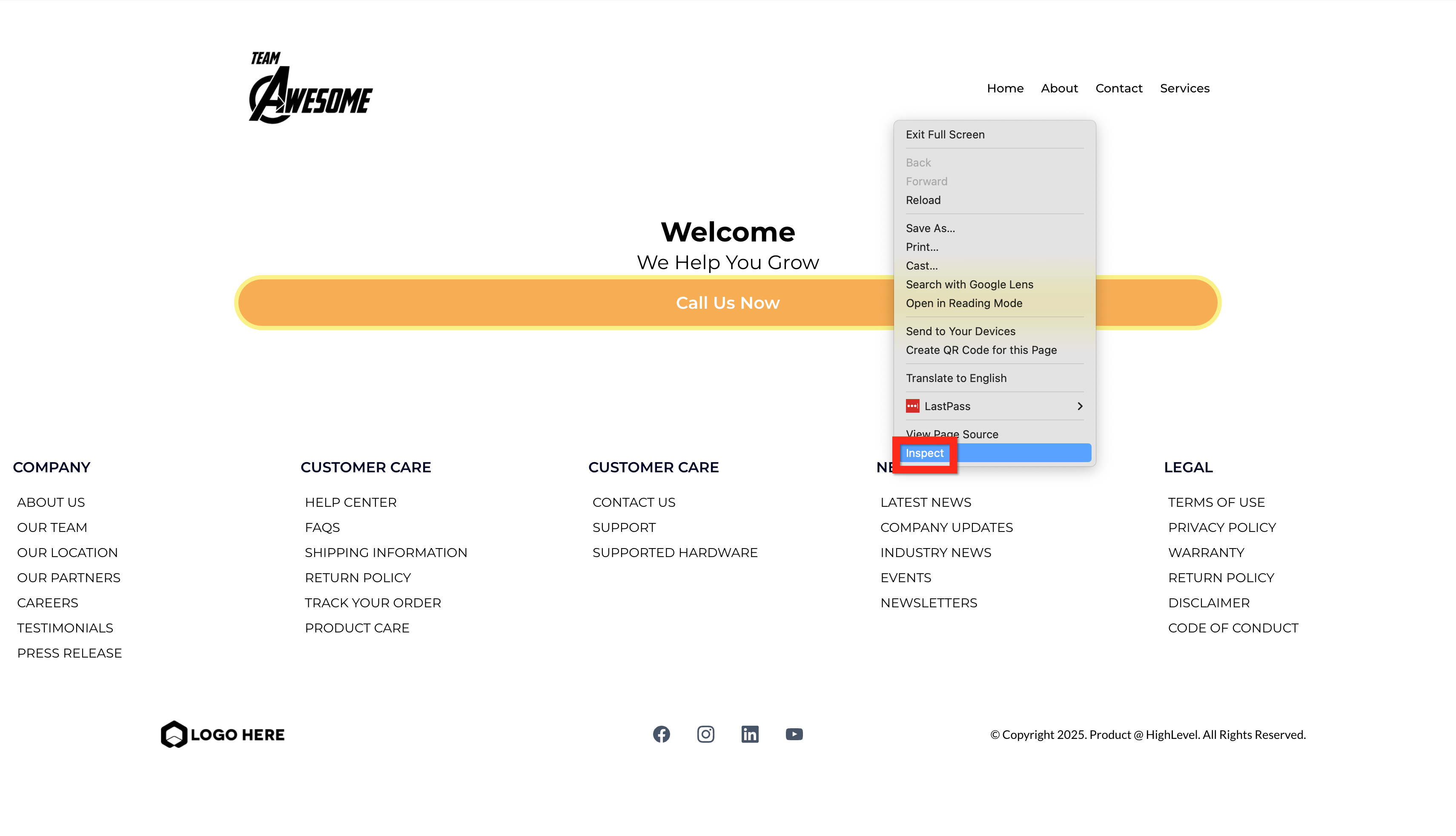
2. Preview mobile: In the page builder, click the mobile phone icon to switch between desktop and mobile views. OR in the preview, right click and select inspect, then in the inspector panel click the desktop/mobile icon.
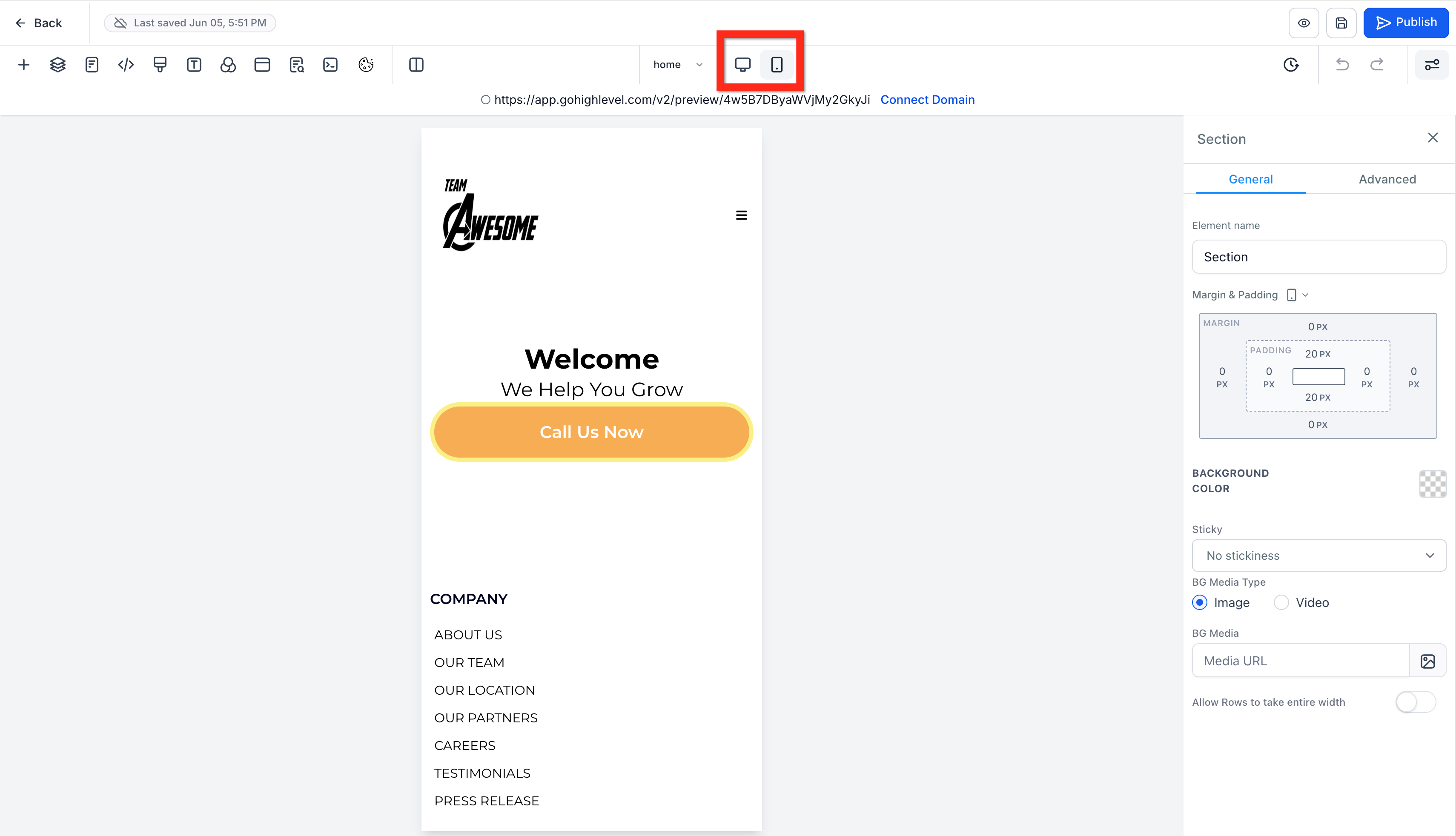
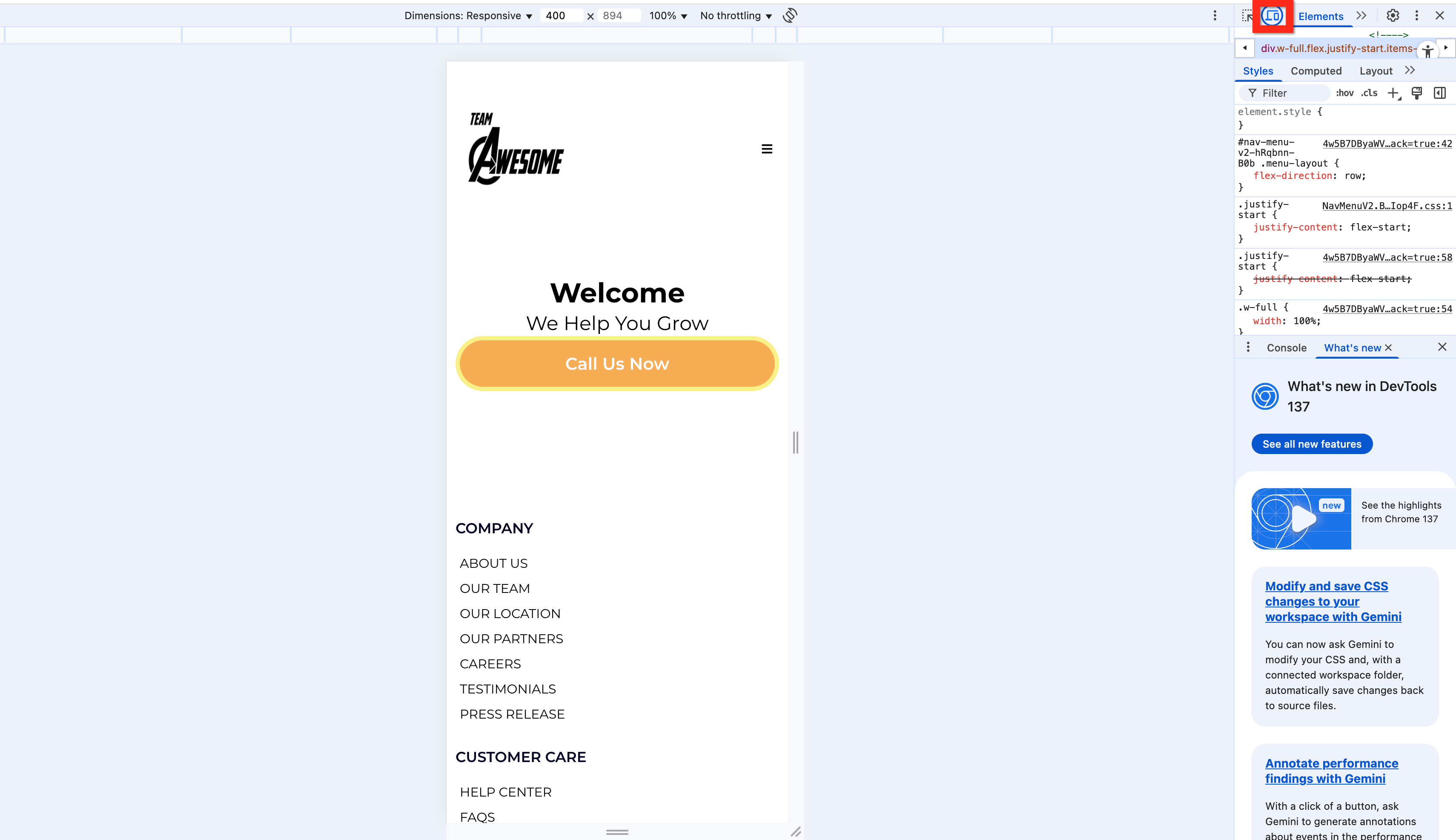
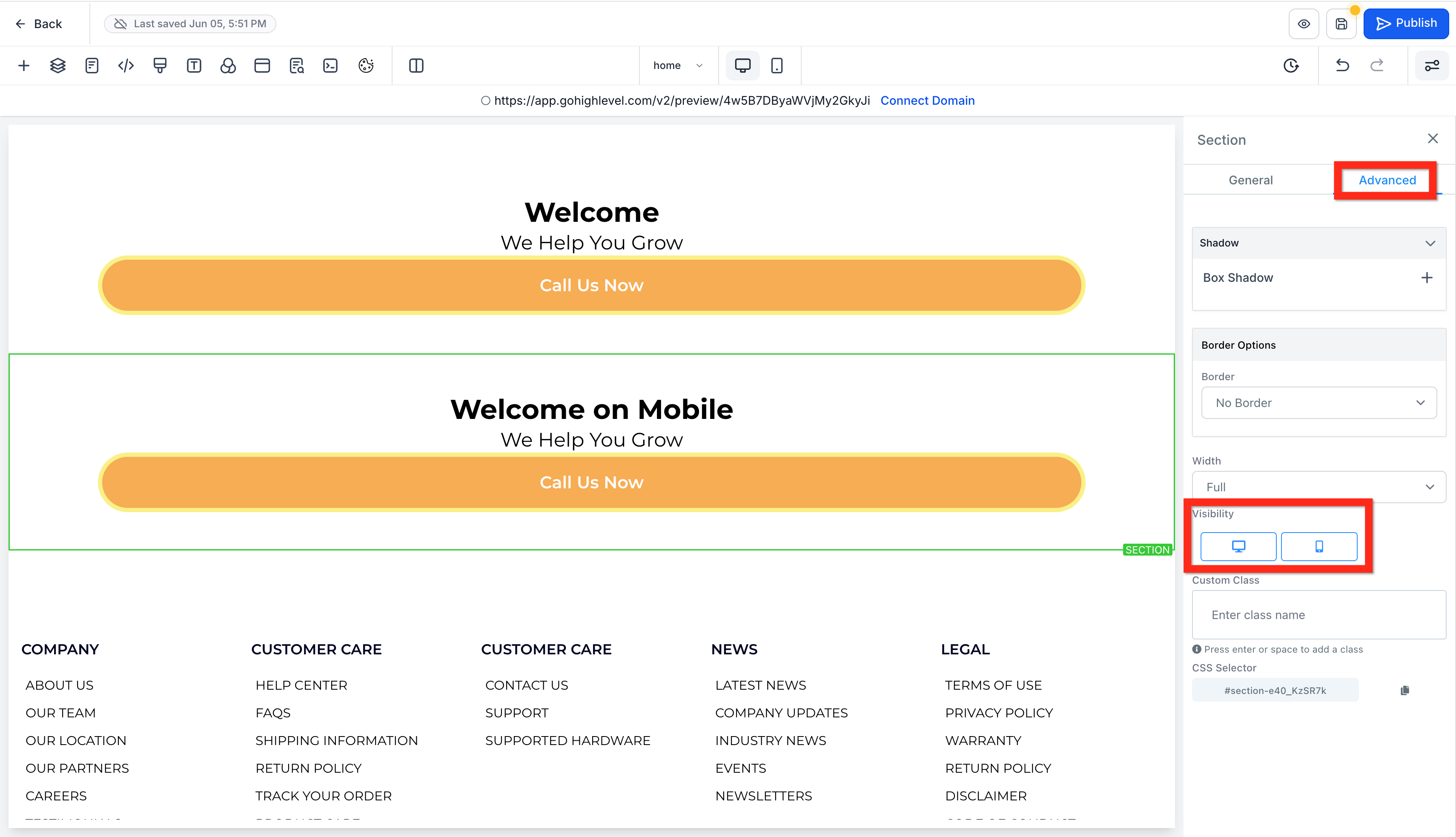
3. Adjust for responsiveness: In the page editor, adjust the elements and settings until everything looks good on both desktop and mobile. If you can't get one element looking the way you want, you can duplicate it and in advanced settings make one element visible on desktop and the other visible on mobile.
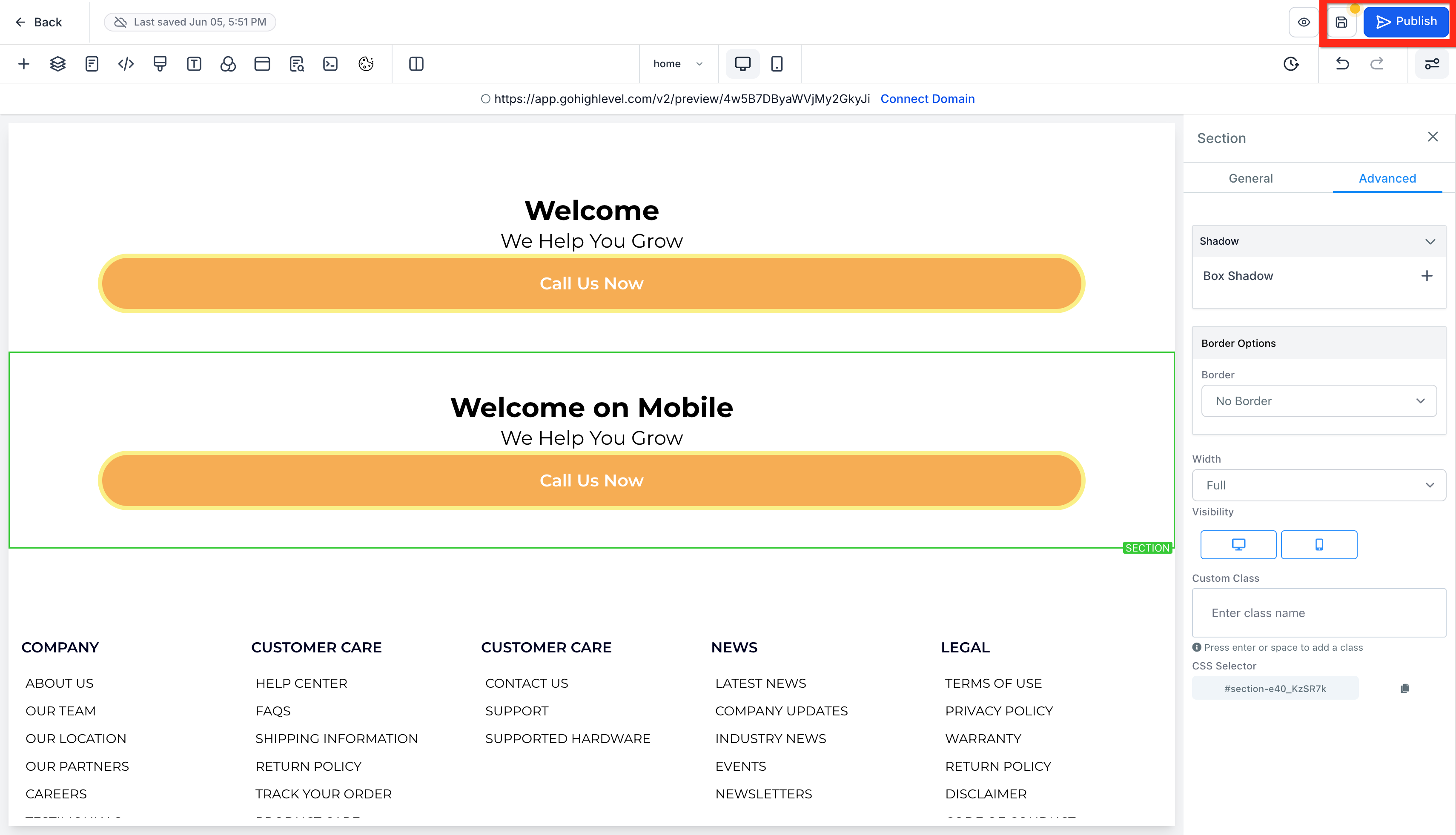
4. Save and Publish: You should be frequently saving and maybe publishing. When you're done, make sure to save and publish for the last time.
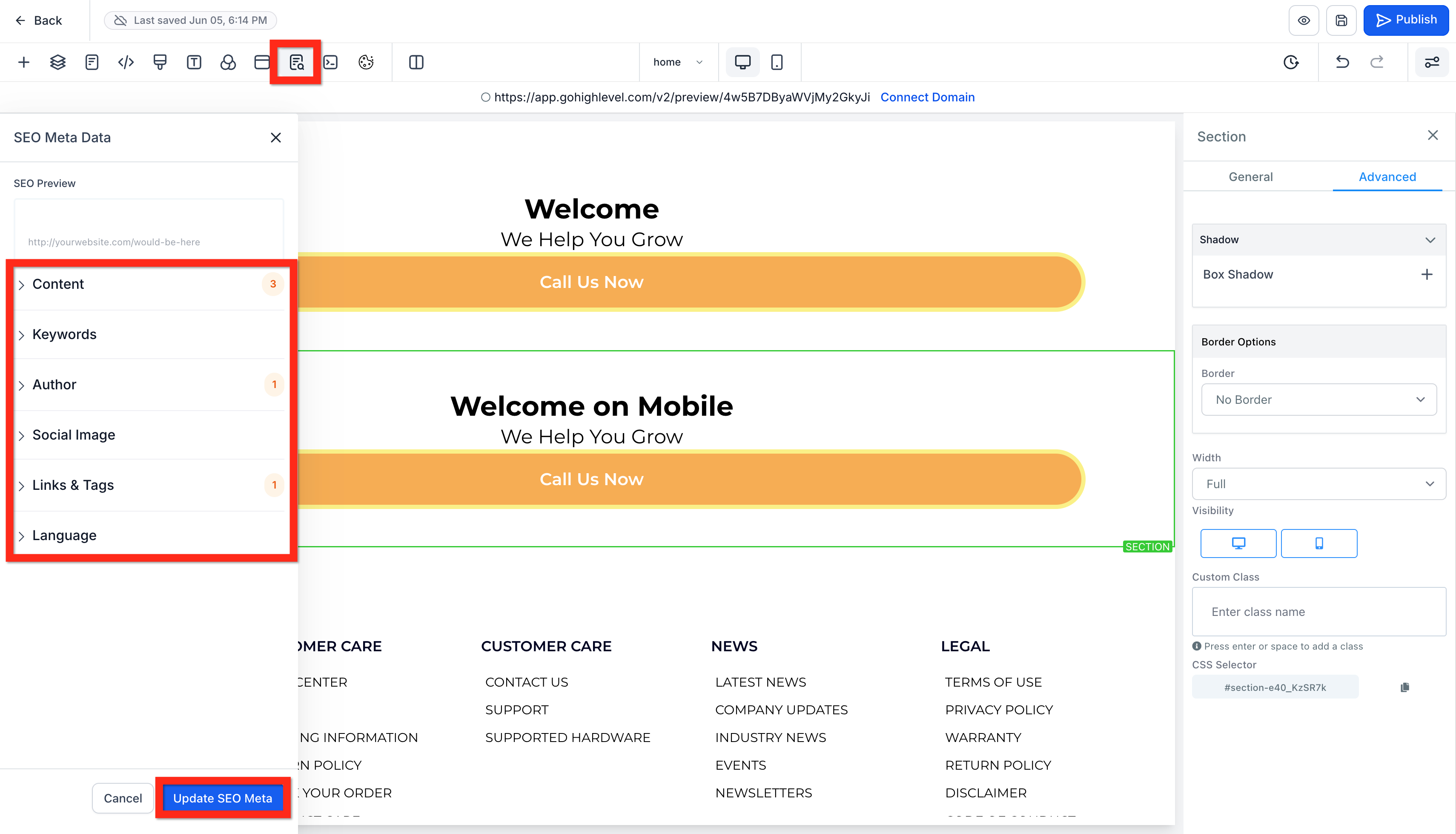
5. SEO Meta Data: In the page builder, click the SEO icon to open the SEO Meta Data panel. Edit SEO and meta data details (title, description, favicon, etc).
6. Connect a domain: Optional, but if you have a custom domain you can attach it to your site.