Getting Started - Setup Social Planner
Ready to simplify your social media management? Great! With the Social Planner, you'll easily schedule and manage your posts, ensuring your brand maintains a consistent presence across popular platforms like Facebook, Instagram, and beyond. Let's get started!
TABLE OF CONTENTS
Setup Social Planner
Creating Posts Using Templates
Creating Custom Posts
Connecting More Social Accounts
Setup Social Planner
First things first, we'll get your accounts connected so you can start posting with ease. Here's how:
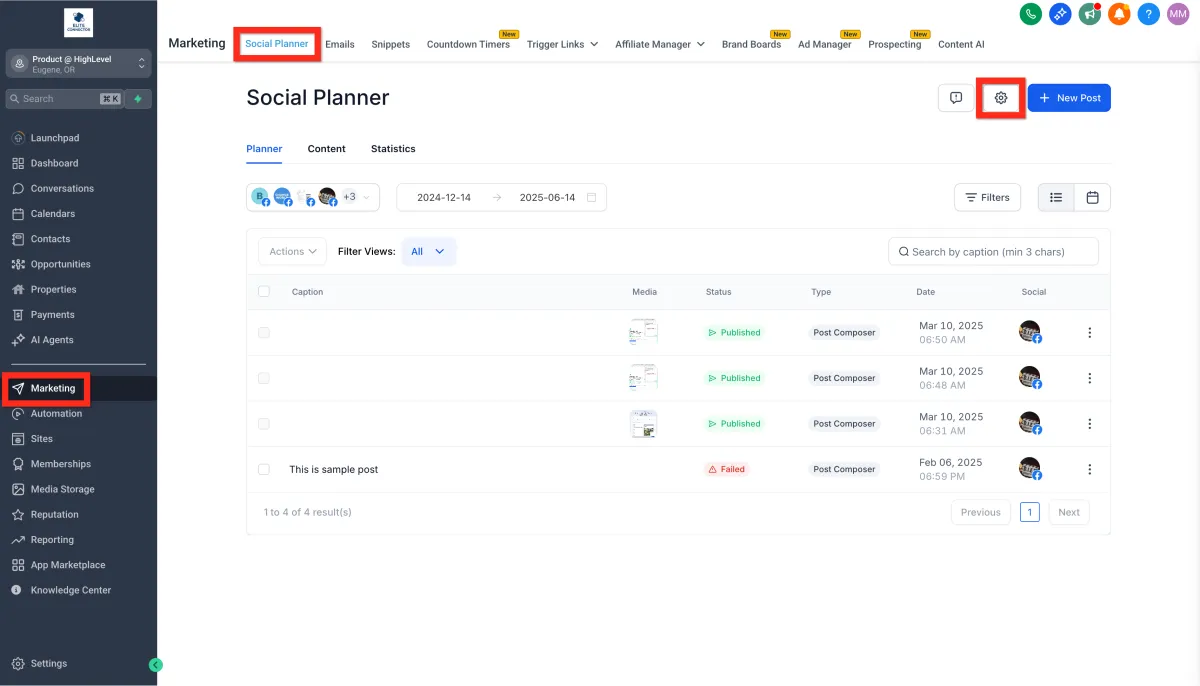
1.Navigate to Marketing > Social Planner > Settings (gear icon).
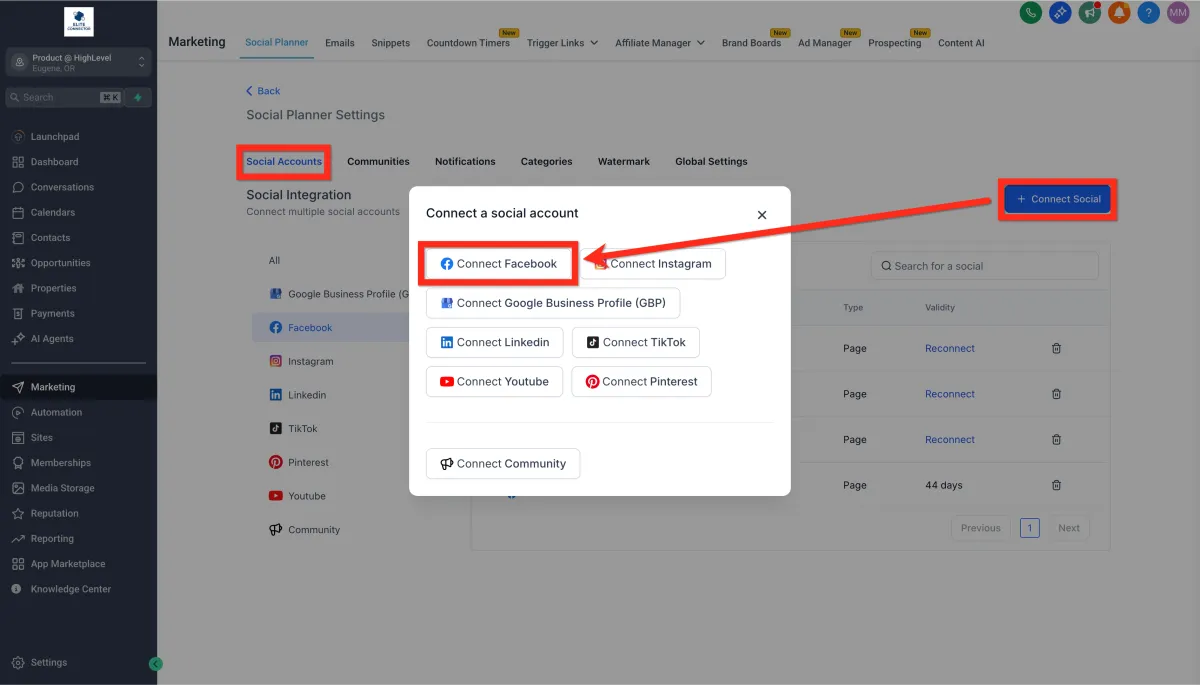
2.Click Connect Social > Connect Facebook.
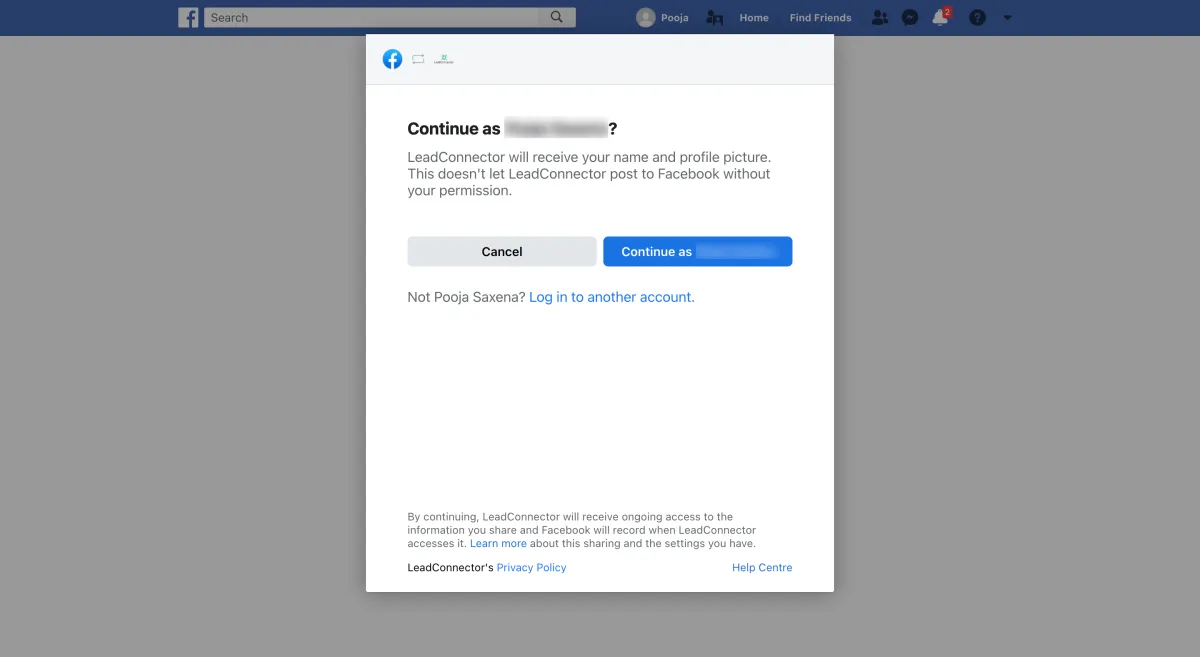
3.Log in to your Facebook account.
4.Choose at least one Facebook page you'd like to manage.
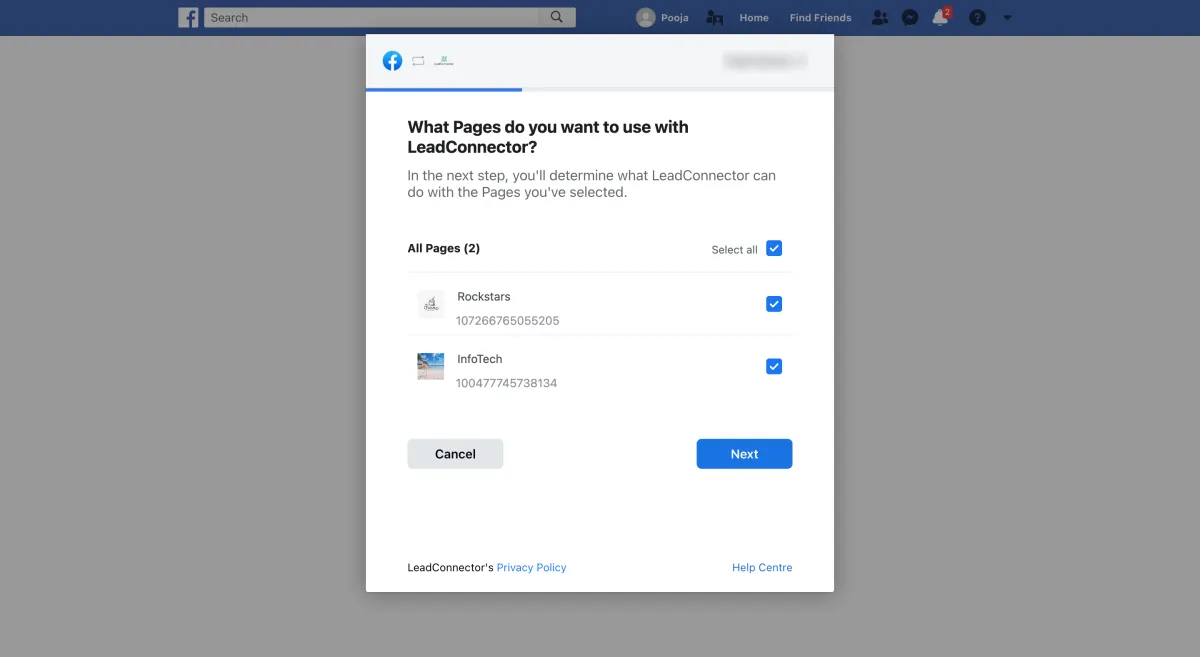
5.Verify your connection.
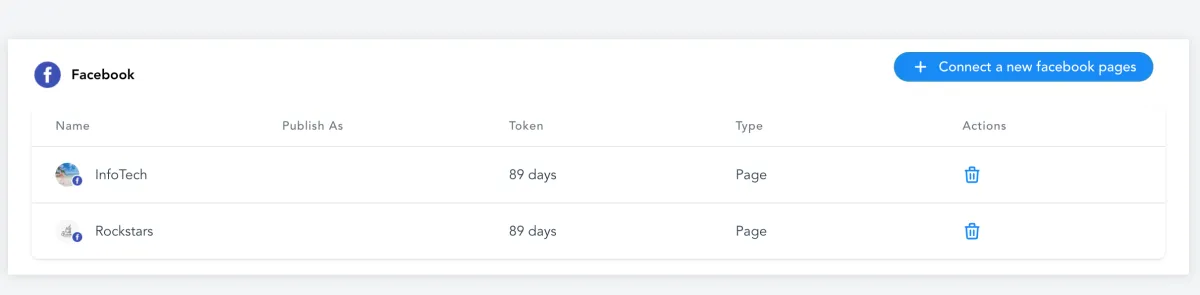
Now that you're connected, let's create some engaging posts!
Creating Posts Using Templates
Templates make your life easy. Quickly customize pre-made designs for impactful posts. Here's the scoop:
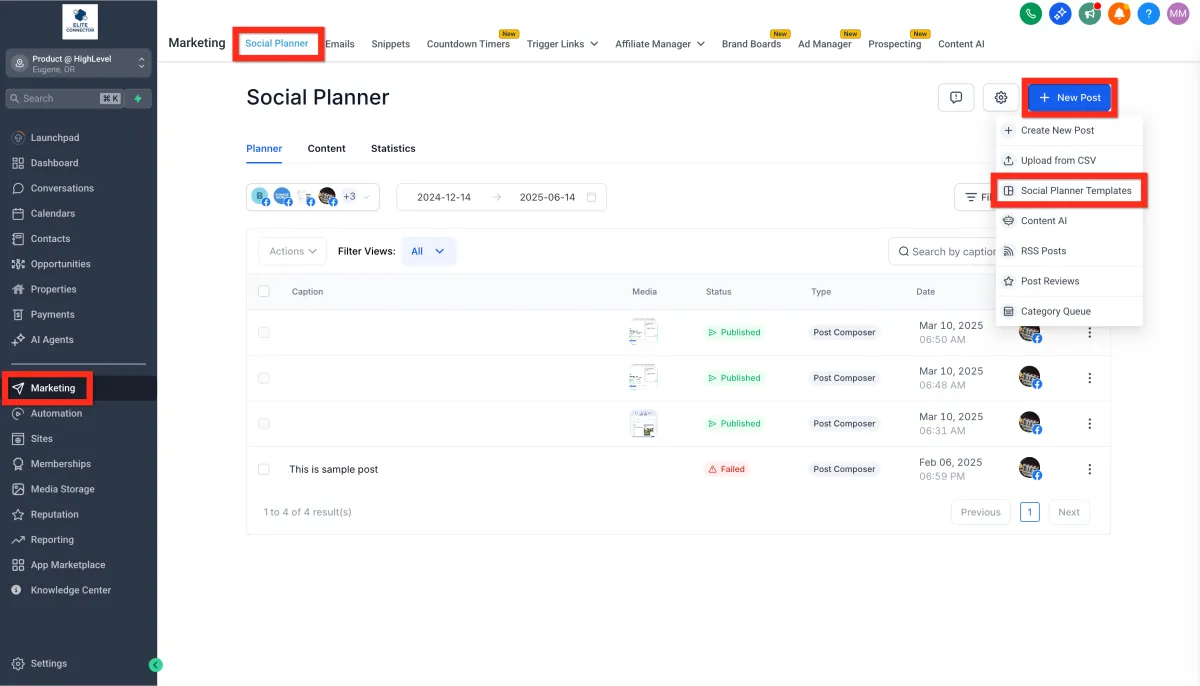
1.Navigate to Marketing > Social Planner > New Post > Social Planner Templates.
Automatic Nudge Suppression
Automatic Nudge Suppression refines the user experience by eliminating redundant prompts. When any user within a sub-account successfully completes a particular action, all contextual nudges for that action are automatically suppressed for everyone in the sub-account. This smart function minimizes distractions and ensures that nudges only appear when truly needed.
Example Contextual In-App Nudges
Getting started with Contextual In-App Nudges is straightforward since the feature is automatically rolled out on a going-forward basis for all plans. Follow these steps to observe and benefit from the feature in your HighLevel account:
1.Log in to your HighLevel account and navigate to the LaunchPad section.
2.Begin an onboarding action—whether that’s starting a guided tour, watching a tutorial, or engaging with a flow.
3.When you pause, abandon, or linger during an action, a contextual nudge will appear featuring one or more dynamic links.
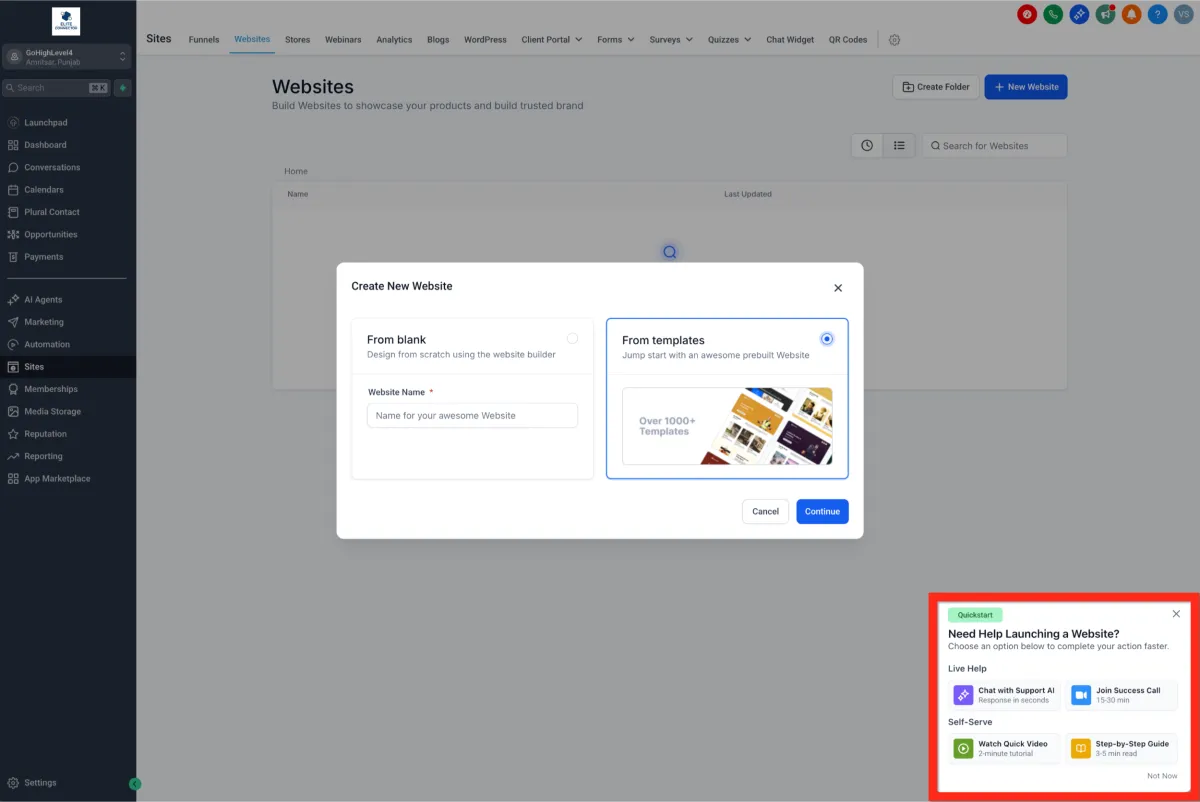
Click on any available link (Support Article, Tutorial Video, Kickoff/Implementation Call, or Chat with Support AI) to immediately access the assistance you need.