
Text Snippets (Templates)
Easily streamline your email creation process by inserting pre-saved text snippets into any email editor—whether you’re building templates or launching campaigns. This feature boosts efficiency, ensures consistency, and makes campaign creation faster than ever.
TABLE OF CONTENTS
What are Text Snippets (Templates)?
Key Benefits of Text Snippets
How To Setup Text Snippets
Managing Your Saved Snippets
Insert Snippet Using Automation (Workflows)
How Attachments Work with Snippets
Frequently Asked Questions
What are Text Snippets (Templates)?
Text Snippets allow you to quickly insert reusable blocks of text (and, in campaigns, attachments) into your emails. By saving commonly used content as snippets, you can maintain brand consistency, reduce repetitive work, and speed up the email creation process across templates and campaigns.
Key Benefits of Text Snippets
Using text snippets in your email workflows offers several advantages:
Save time by reusing content: No need to rewrite or copy-paste frequently used sections.
Ensure consistency across emails: Standardize messaging, disclaimers, or promotional sections.
Simplify campaign creation: Quickly assemble emails with ready-to-go sections.
Automatic attachment inclusion in campaigns: Attachments saved with snippets are automatically added when used in campaigns.
Reduce errors: Minimize manual entry mistakes by using pre-approved content.
How To Setup Text Snippets
Setting up and using text snippets is straightforward and helps you create emails more efficiently. Proper setup ensures your team can access and insert the right content whenever needed.
Access the Snippets Section
Open the left-hand navigation menu and click on Marketing > Snippets to begin creating or managing text snippets in your account. This is where all saved snippets are stored and accessible for reuse.
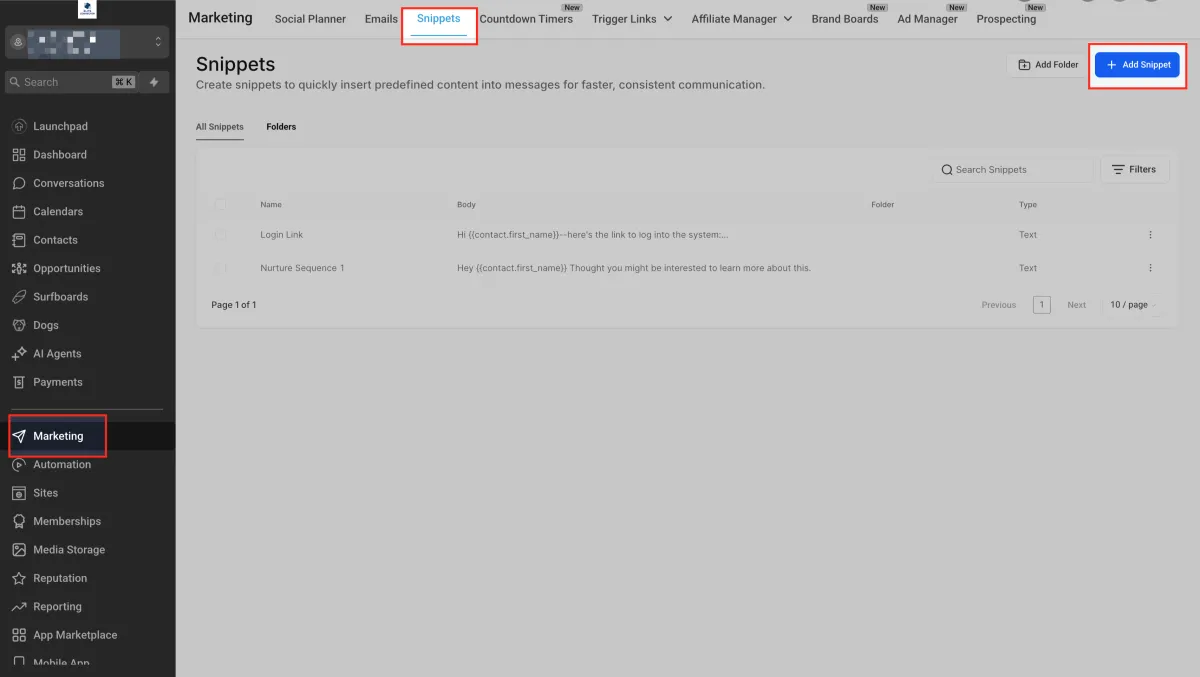
Create a New Text Snippet
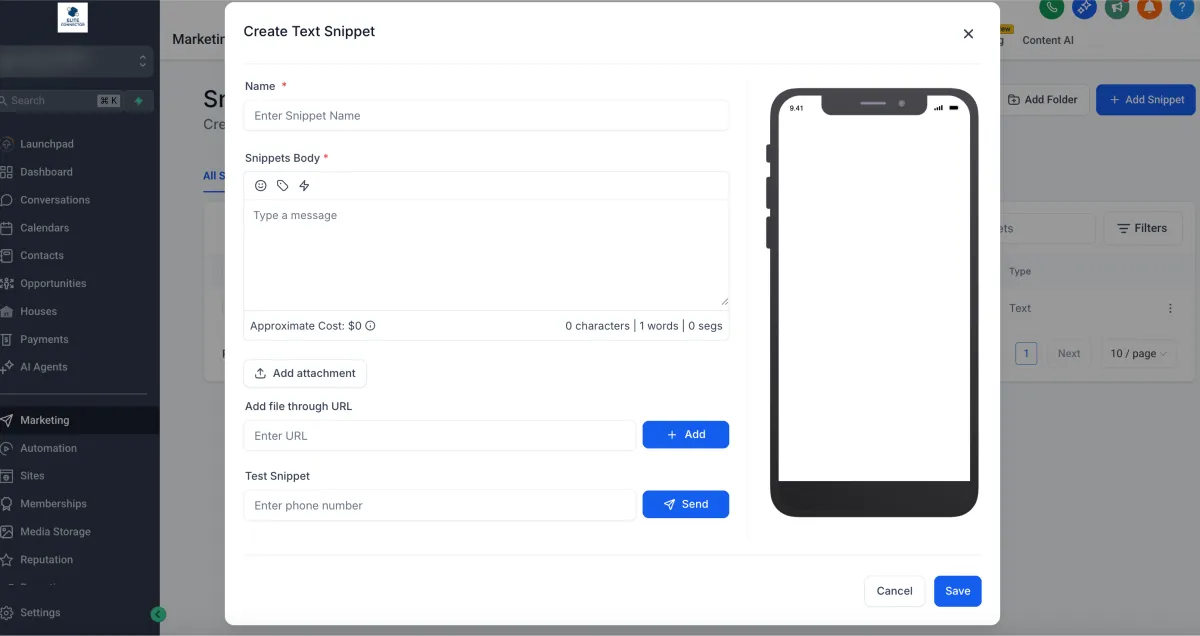
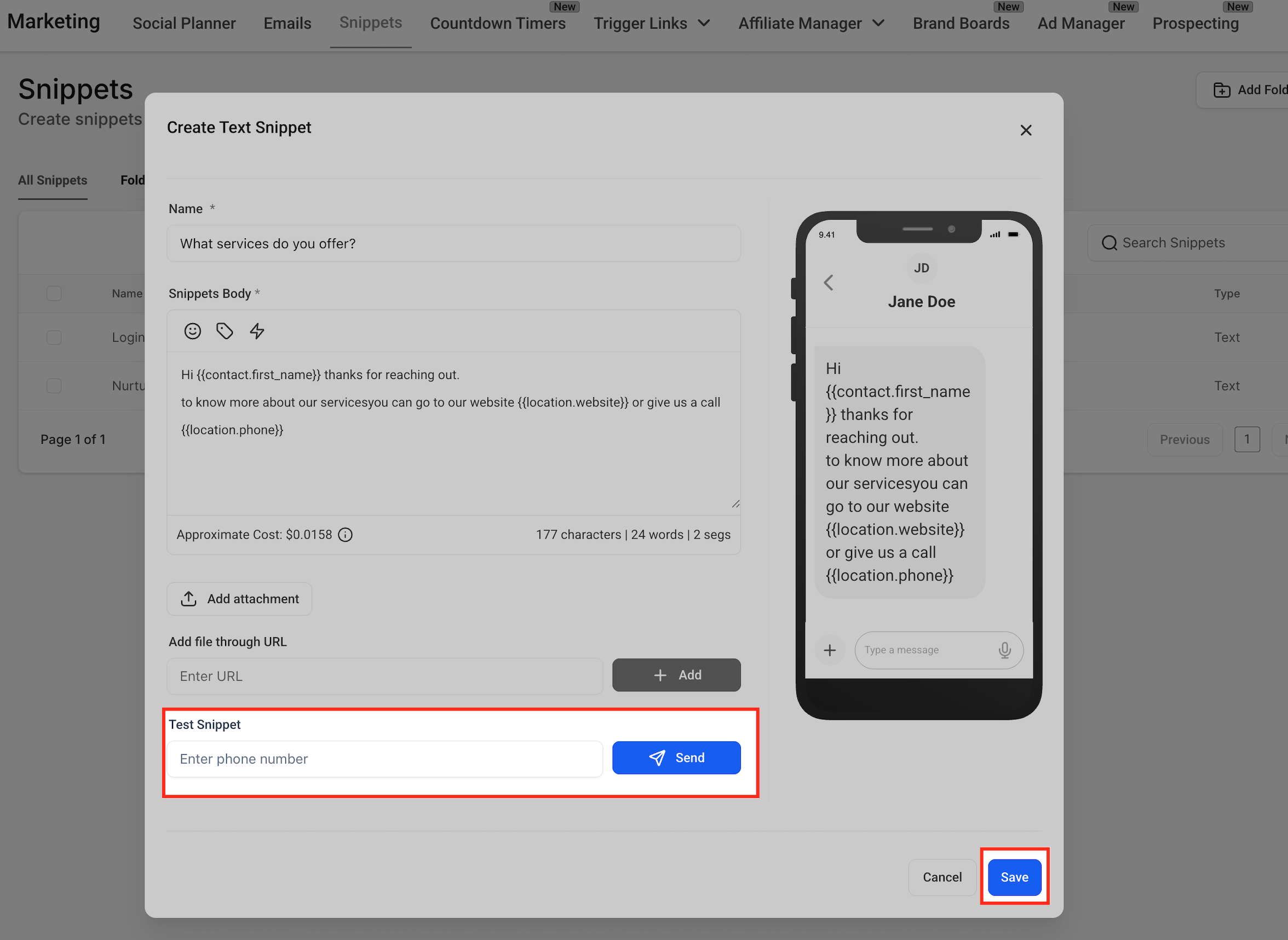
In the Snippets panel, click on + Add Snippet to launch the snippet creation window. Enter the Name, Body, and optionally attach files or test the message by phone. The preview pane on the right lets you see how the message will appear on a mobile device.
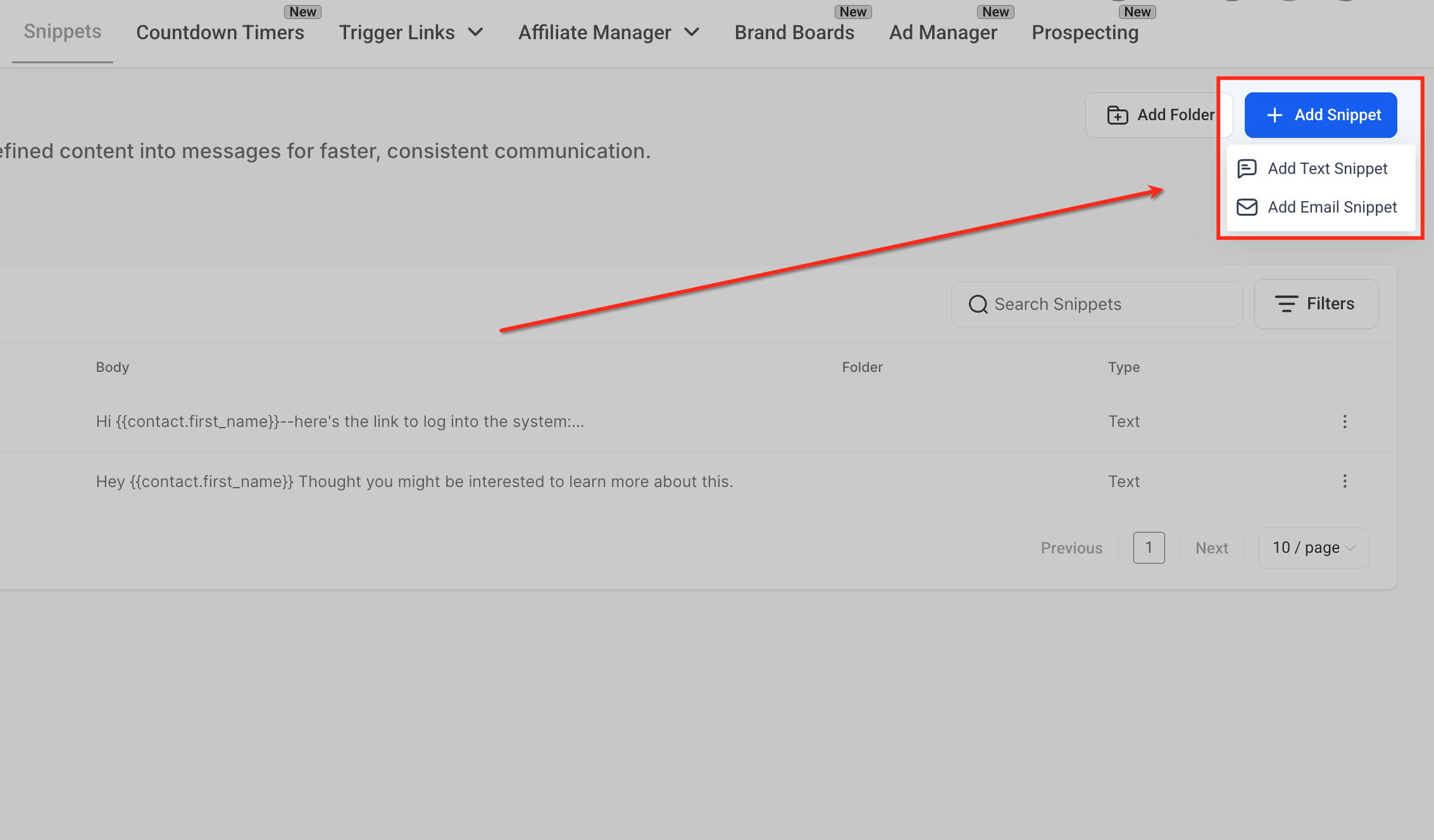
Name and Preview Your Snippet
Enter the desired text and, if applicable, add attachments (attachments will only be included in campaigns).
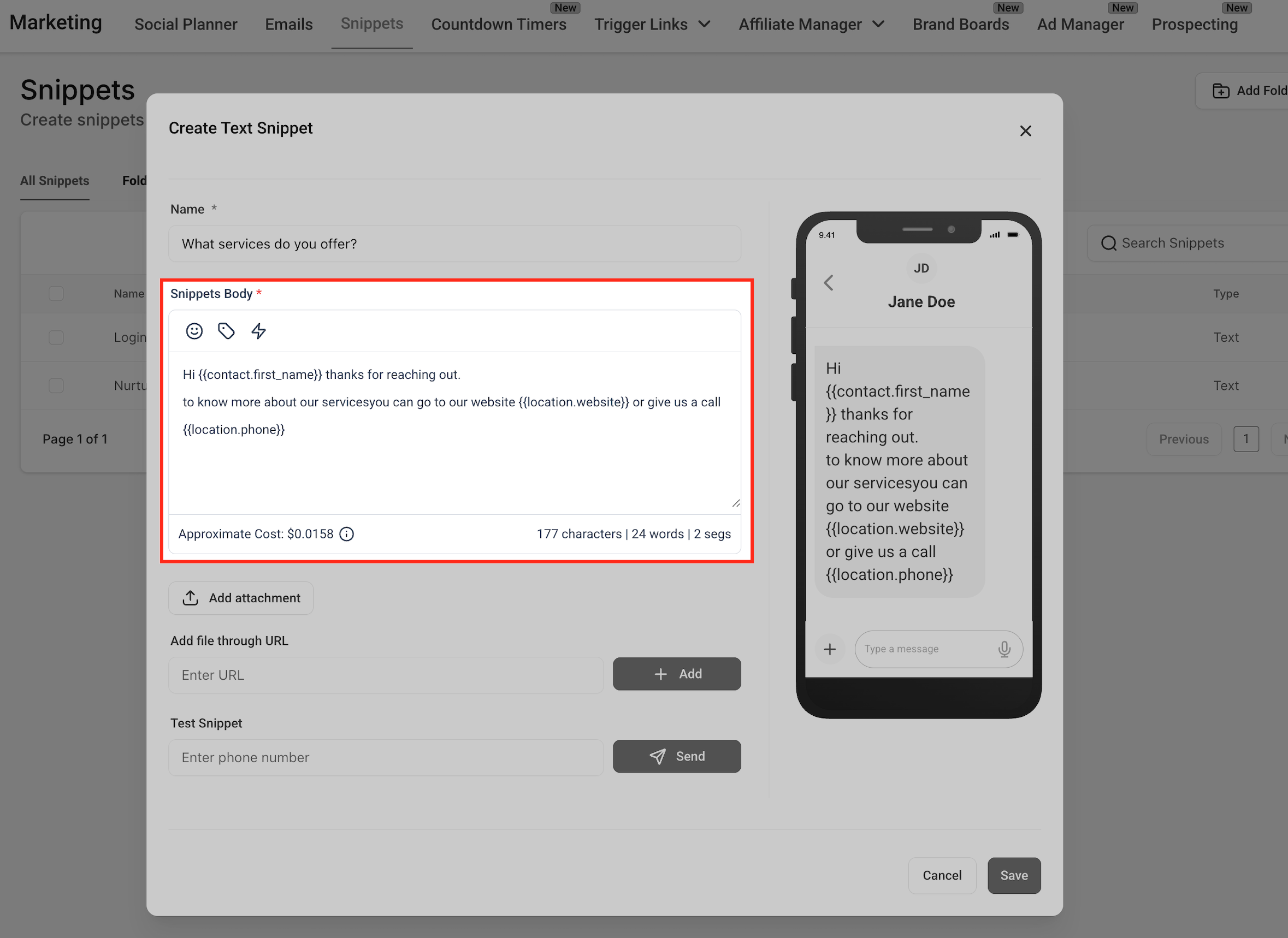
Save your snippet for future use. Provide a descriptive title for your snippet, ideally based on the question or use case it addresses (e.g., “What services do you offer?”). The mobile preview helps ensure the text looks clear and personalized before saving.
Customize Your Snippet with Dynamic Content
Use Custom Values and Trigger Links to personalize messages. The live preview shows exactly how the message will appear to the contact. Use this view to refine the tone, clarity, and formatting.
Test and Save
You can also enter your mobile number and click Send Test to test your snippet. Once you're good with your snippet, Click Save.
Please Note: Please take note of the number of characters, number of segments and approximate cost of your snippet when sent as an SMS message.
Insert Snippet in Conversations
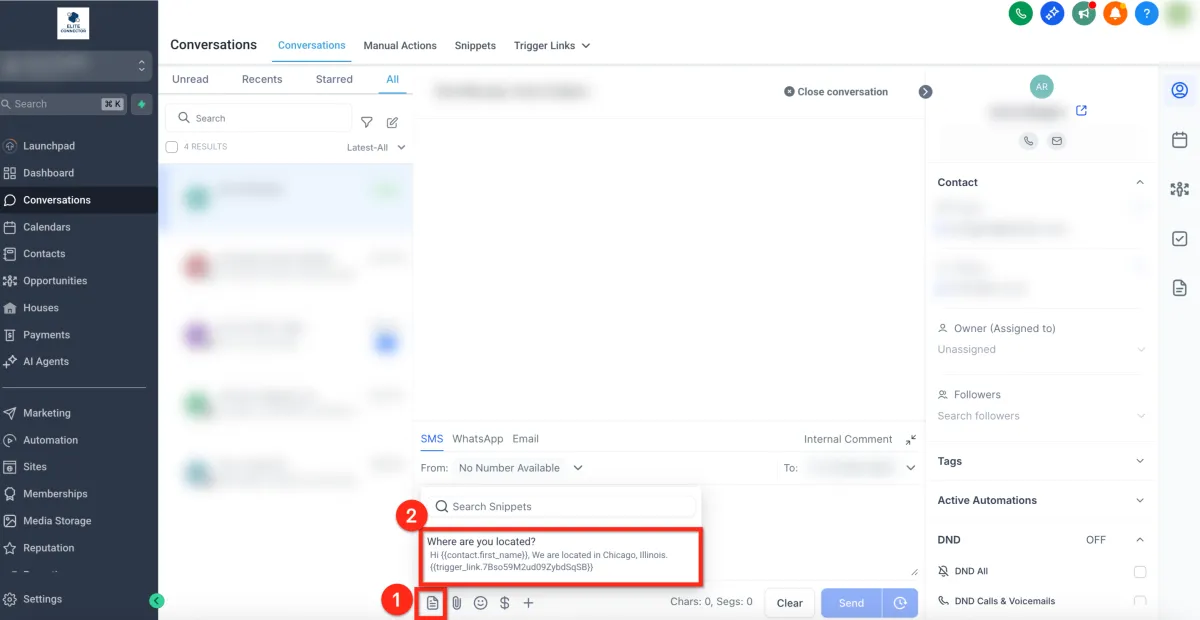
When responding to contacts in the Conversations tab, click on the Snippets icon, search for the relevant snippet, and click to insert it directly into your message. This saves time and ensures consistency.
SMS Preview with Custom Snippet
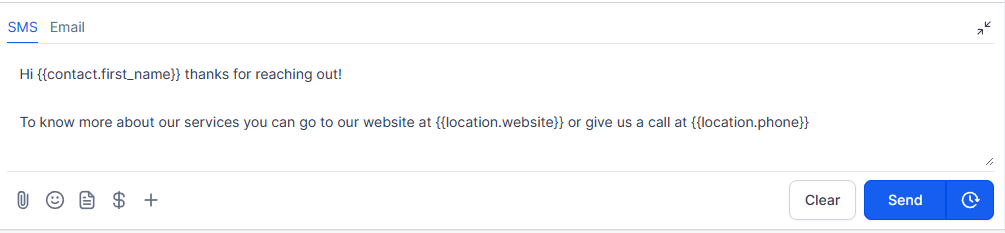
Here’s an example of a fully composed SMS message using a saved snippet. You can see how dynamic placeholders are replaced with actual contact information to personalize each message sent through your campaigns or manual outreach.
Managing Your Saved Snippets
Keep your snippet library organized for efficient email building. You can easily edit, delete, or rename existing snippets by navigating to the Snippets section in your account. Keeping content updated ensures your team always uses the latest approved messaging.
Insert Snippet Using Automation (Workflows)
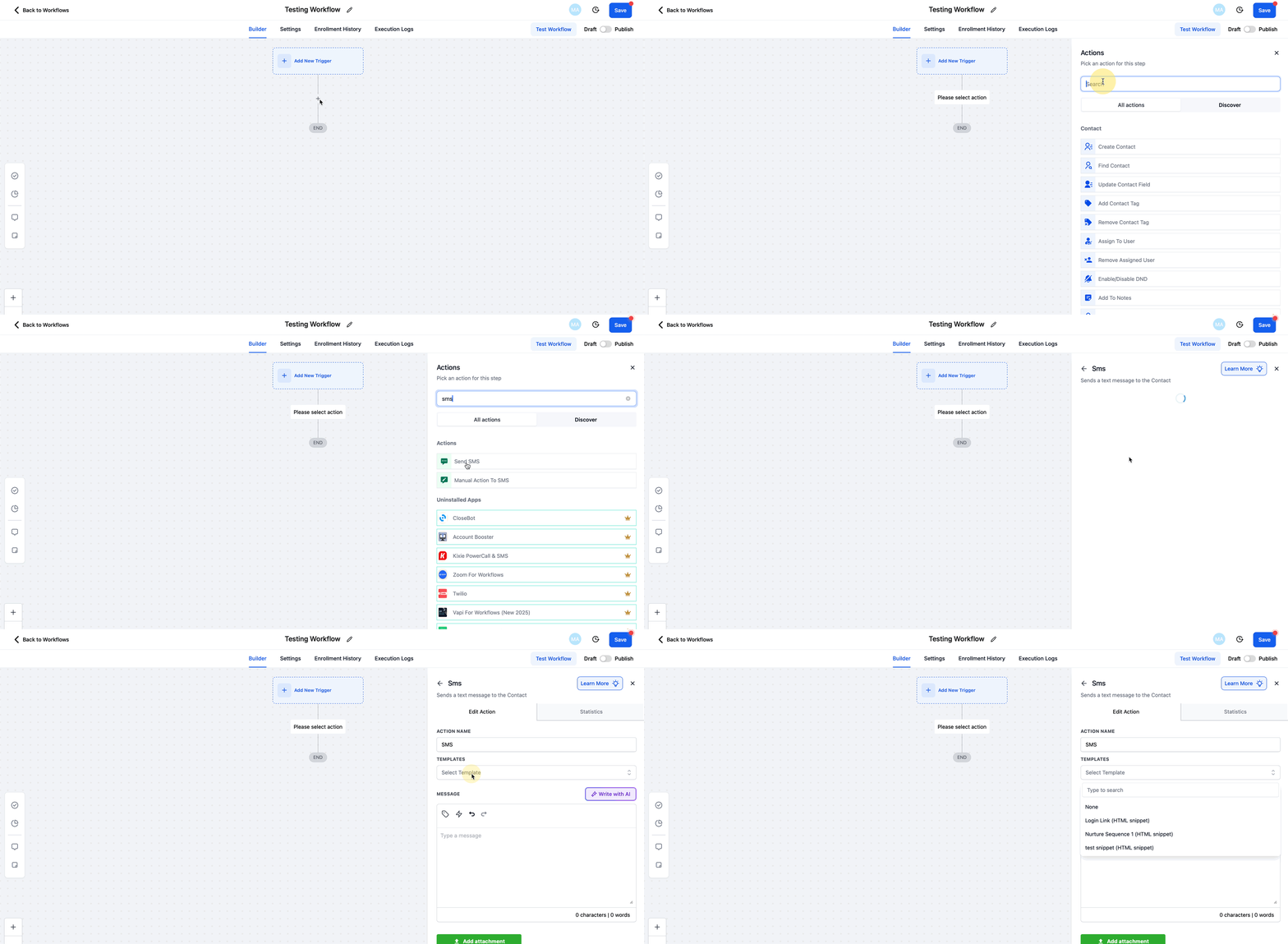
Snippets can also be inserted into automated messages inside workflows. This allows you to maintain consistent messaging while saving time, since commonly used text blocks don’t need to be retyped each time you build an automation.
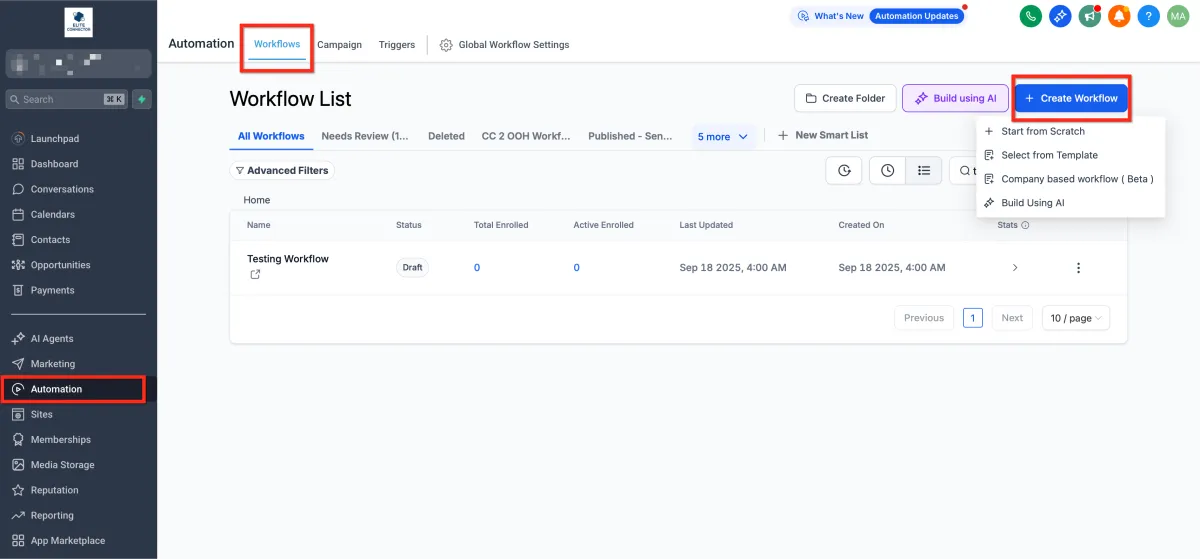
Navigate to Automation > Workflows.
Open an existing workflow or create a new one.
Add an Action
Add a messaging action such as Send SMS or Send Email. In the message composer, click on the Templates option to view a dropdown of all snippets.
Select the Snippet
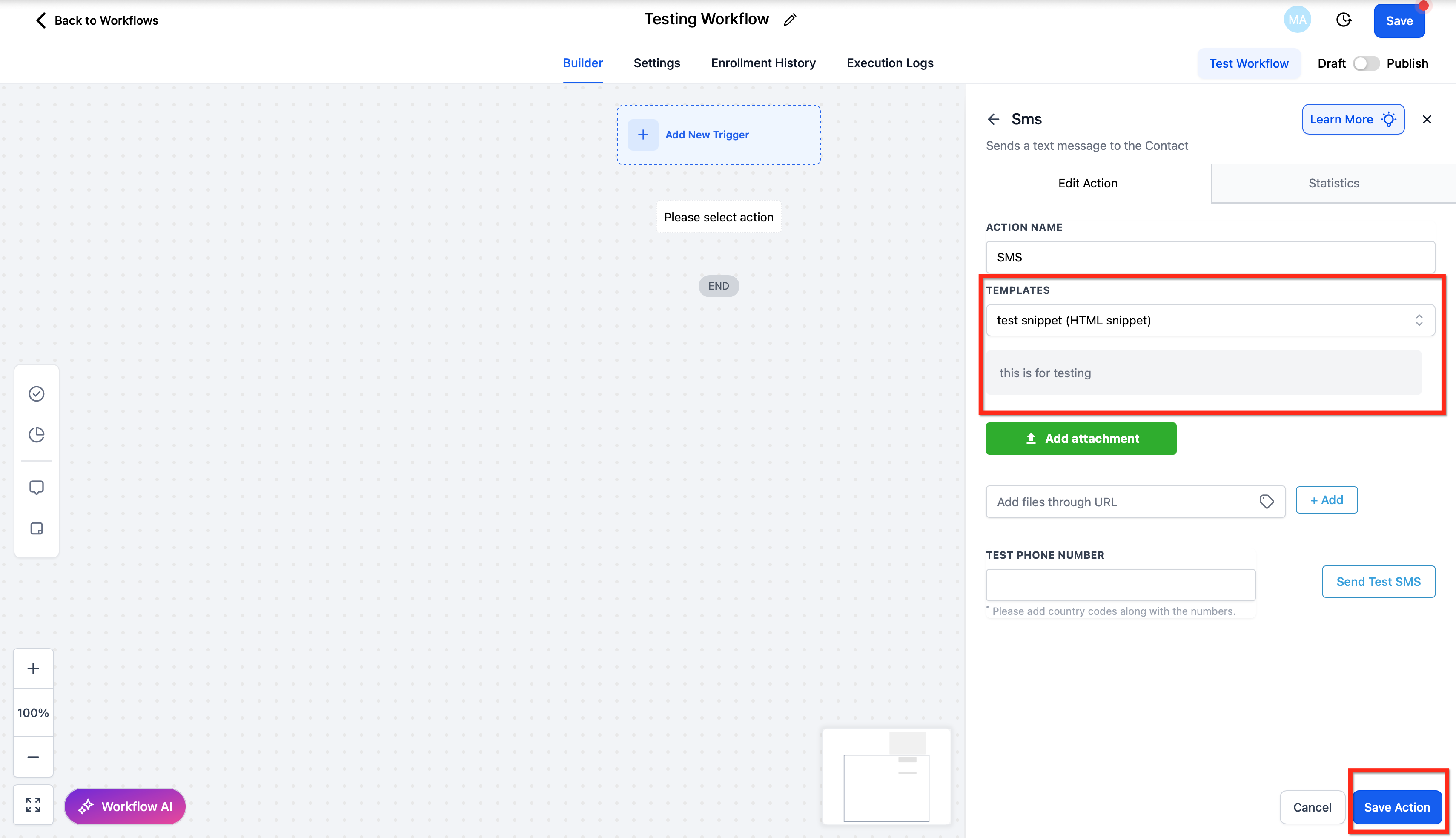
Choose the snippet you’d like to insert. The text will appear directly inside the message body. Save your workflow action.
How Attachments Work with Snippets
Understanding when attachments are included with snippets helps avoid confusion during email creation.
Email Templates: Attachments linked to snippets will not be included when inserted into templates. Only the text content will appear.
Campaign Emails: Attachments will be automatically included when you insert a snippet in a campaign email. This makes it easy to consistently deliver resources like PDFs, brochures, or product guides.
Workflows: Attachments included in snippets are not automatically added when used in workflow emails or SMS. To include files in automated emails, you must attach them directly within the workflow step.